
Tu calendario solo es útil si refleja la realidad — pero la realidad llega a tu bandeja de entrada. Una confirmación del dentista, un itinerario de vuelo, una reserva de cena, un evento escolar de tu hijo, una ventana de entrega de paquetes: cada uno es una fecha enterrada en un correo que tienes que notar, abrir, retecleardr y guardar antes de que cuente. La mayoría de la gente nunca termina ese bucle, así que su calendario se desincroniza en silencio de su vida real. Un calendario que se rellena solo cierra ese hueco leyendo las confirmaciones que ya recibes y escribiéndolas directamente en tu agenda. Esta guía explica cómo funciona eso, cómo configurarlo, y cómo mantenerlo preciso para que puedas confiar en él.
Por qué tu calendario sigue quedándose atrás
El problema no es la disciplina — es la traducción. Cada reserva que haces genera un correo, pero ese correo está escrito para que lo lea una persona, no para que lo importe un calendario. La fecha está en prosa, la ubicación en un pie de página, el número de confirmación tres párrafos más abajo. Para llevarlo a tu calendario tienes que actuar como un analizador manual: detectar el correo, decodificarlo, y volver a introducirlo. Multiplica eso por vuelos, citas, reservas, entregas y avisos escolares y el atasco es inevitable.
Esta es la carga mental que nadie contabiliza. No son los eventos en sí lo que te agota — es llevar el bucle abierto de "todavía tengo que añadir eso a mi calendario" para docenas de elementos a la vez. Un calendario que se llena solo elimina el bucle por completo, porque en el momento en que llega una confirmación, el evento ya está ahí.
- Los correos de confirmación están escritos para leerse, no para importarse — la fecha está enterrada en prosa.
- La reentrada manual es el paso que la mayoría se salta, así que el calendario se desincroniza.
- El coste real es la carga mental de rastrear qué falta por añadir.
Cómo funciona de verdad un calendario que se llena solo
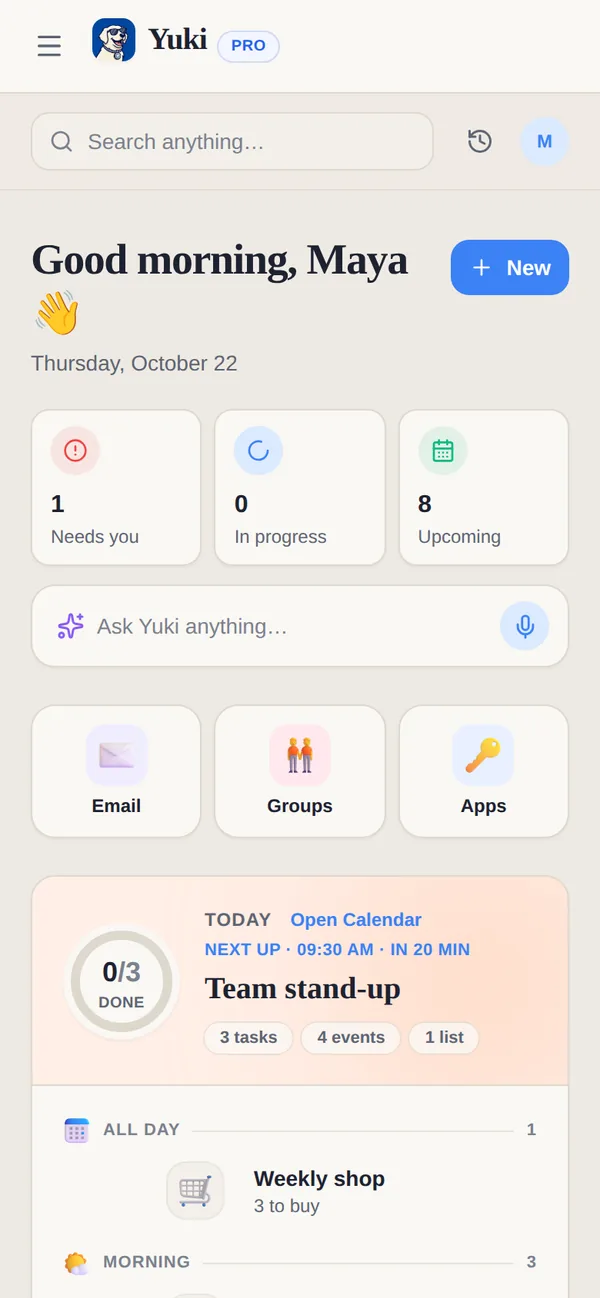
Un calendario que se llena solo tiene dos trabajos: entender tu bandeja de entrada y escribir en tu calendario. Yuki se conecta a Gmail y lee las confirmaciones, invitaciones, recibos y correos de reserva que ya recibes, y luego extrae las piezas con sentido — qué, cuándo, dónde — y las convierte en eventos estructurados. En vez de un muro de texto, una confirmación de vuelo se convierte en un evento con fecha, con la hora de salida y el aeropuerto; una reserva de restaurante se convierte en una reserva a la hora correcta.
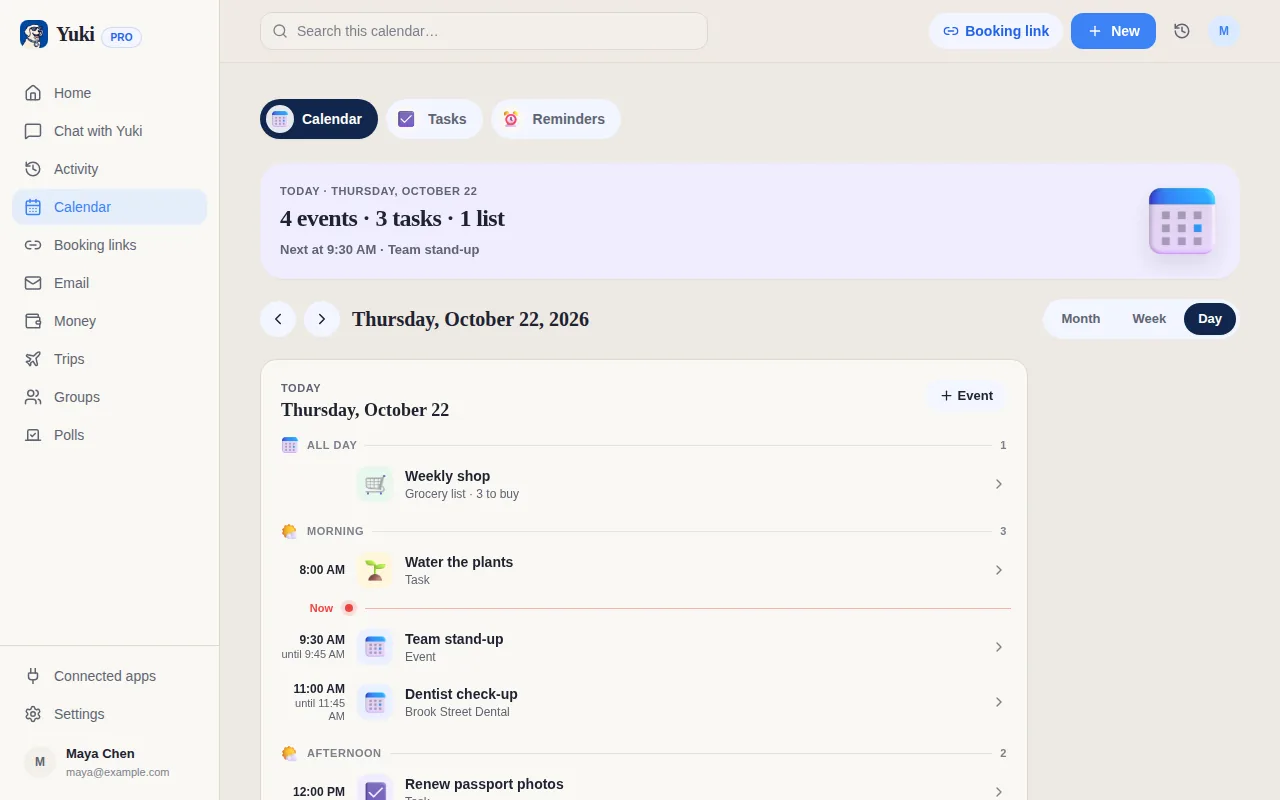
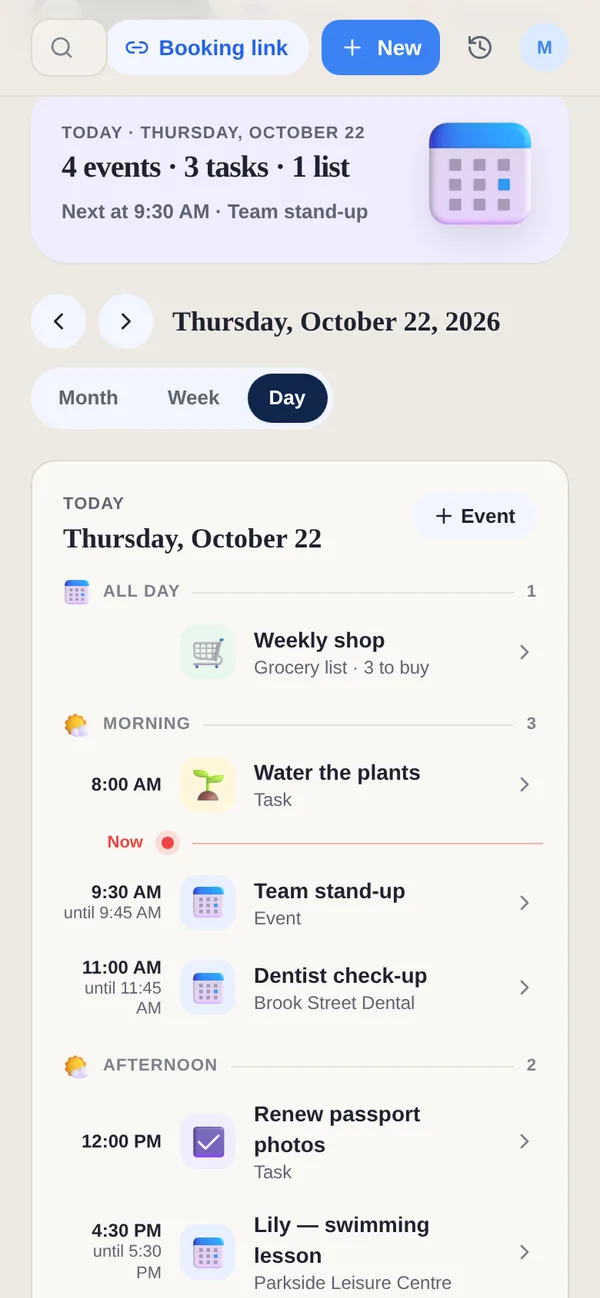
La segunda mitad es la escritura de vuelta. Yuki se sincroniza de forma bidireccional con Google Calendar (tanto en iOS como en Android) y puede escribir en Apple Calendar en iOS, así que los eventos aparecen en la app de calendario que ya usas — no en un silo aparte que tendrías que acordarte de consultar. Como la sincronización es bidireccional, los cambios que hagas en cualquiera de los dos lados se mantienen consistentes.
- Lee Gmail para extraer la fecha, hora y lugar de confirmaciones reales.
- Escribe eventos en Google Calendar (iOS + Android), o Apple Calendar en iOS.
- La sincronización bidireccional mantiene tu app de calendario existente como la única fuente de verdad.
No son solo reuniones — es toda tu vida
La misma bandeja de entrada que tiene invitaciones de trabajo también tiene el resto de tu vida, y un calendario que se llena solo lo atrapa todo. Los vuelos y hoteles se convierten en itinerarios de viaje. Los correos de paquetes se convierten en ventanas de entrega que puedes ver en tu agenda. Las facturas recurrentes y las suscripciones salen a la luz antes de que lleguen. Las citas, reservas y eventos de los niños aterrizan el día que les corresponde. El objetivo no es una lista de reuniones más ordenada — es un calendario que por fin refleja todo de lo que de verdad eres responsable.
Como Yuki es la capa de memoria y coordinación para la vida diaria en vez de una herramienta solo para el trabajo, los eventos que crea se conectan con el resto de tu organización: los gastos se controlan, los viajes se construyen, los recordatorios se fijan. Un solo escaneo de la bandeja de entrada alimenta en silencio varias partes de tu vida a la vez, que es lo que hace que se sienta menos como software y más como algo que te quita un peso de encima.
- Los vuelos y hoteles se agrupan en itinerarios de viaje completos automáticamente.
- Las entregas, facturas y renovaciones de suscripciones aparecen antes de sorprenderte.
- Las citas y reservas aterrizan el día correcto sin retecleardr.
Mantén el calendario autorrellenado preciso y de confianza
Un calendario que se llena solo solo tiene valor si confías en él, así que la primera semana importa. Revisa el lote inicial de eventos creados automáticamente y corrige cualquier cosa que leyera mal una fecha o título — esto te enseña dónde el asistente es fiable y dónde una confirmación era ambigua. Después de eso, el mantenimiento es en su mayoría pasivo: las confirmaciones nuevas se convierten en eventos a medida que llegan.
Para que sea el calendario el que recuerde en vez de tú, activa las notificaciones inteligentes para que te avisen antes de los eventos, y comparte los calendarios de los que otros dependen. En un grupo compartido, una pareja, familia o compañeros de piso ven todos el mismo horario sincronizado, así que una reserva que hace una persona es visible para todos los que la necesitan — sin reenviar, sin "¿lo añadiste?". La coordinación deja de ser una tarea aparte.
- Revisa y corrige el primer lote para calibrar la confianza, y luego déjalo funcionar.
- Activa las notificaciones inteligentes para que el calendario te recuerde a ti, no al revés.
- Usa grupos compartidos para que parejas, familia o compañeros de piso vean el mismo horario sincronizado.
Paso a paso
- 1Conecta tu correo — vincula Gmail para que las confirmaciones, invitaciones y reservas entrantes puedan leerse en busca de fechas y detalles.
- 2Conecta tu calendario — en Android e iOS, vincula Google Calendar para sincronización bidireccional; en iOS también puedes escribir en Apple Calendar.
- 3Déjalo rellenar hacia atrás — el asistente escanea correos de confirmación recientes y crea eventos para próximas citas, vuelos, reservas y entregas.
- 4Revisa el primer lote — abre tu calendario, confirma que los eventos creados automáticamente se ven bien, y corrige cualquier título u hora que necesite un toque humano.
- 5Activa las notificaciones — activa los recordatorios inteligentes para que te avisen antes de los eventos sin que tengas que consultar el calendario tú mismo.
- 6Comparte los calendarios correctos — invita a tu pareja, familia o compañeros de piso a grupos compartidos para que los horarios que todos necesitan se mantengan sincronizados.