
Yuki Guide
Money & expenses
Spending against your budget, subscriptions, what you owe and your goals — one screen.
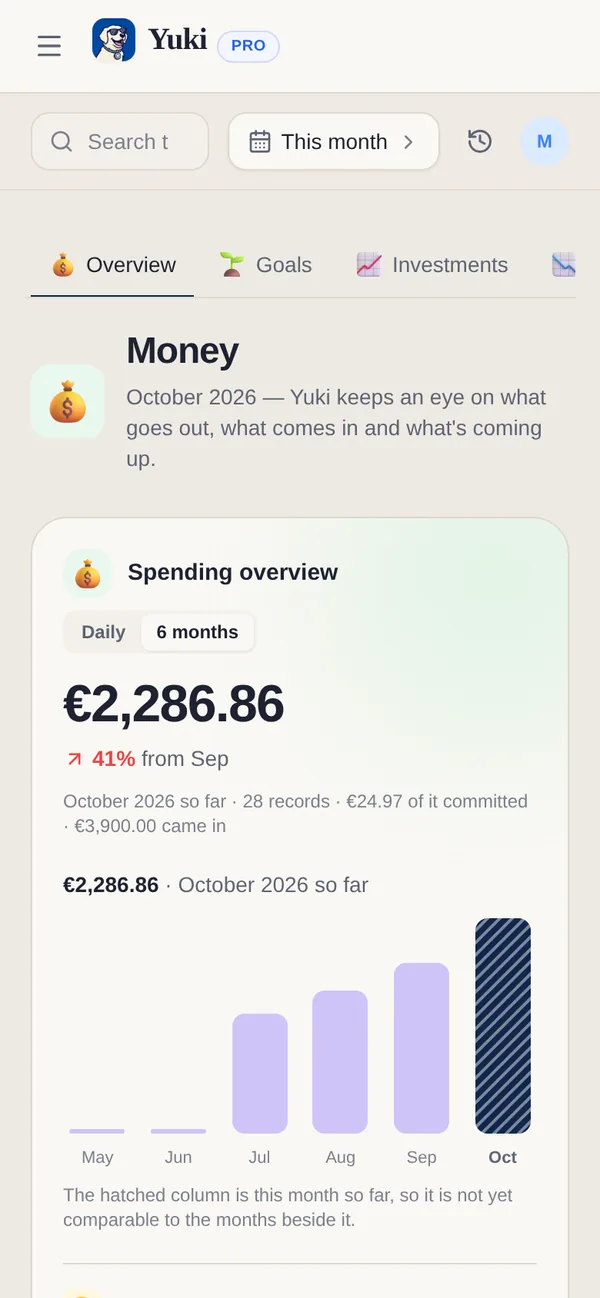
Money is a tab on your phone and in the web sidebar. It opens on this month’s spending — against your budget if you set one — with your subscriptions, what you owe and your goals a tap away.
What’s in Money
- Spending — this month so far, the trend, your top categories and recent transactions.
- Subscriptions — every recurring charge with its price and next renewal, and a monthly total.
- Liabilities — a loan or a card balance, tracked apart from day-to-day spending so debt doesn’t get lost in a transaction list.
- Goals — something you’re saving for, alone or with a group. Free includes 1 goal; Pro, including the Pro trial, has unlimited goals. See Financial goals.
On the web these are sections along the top: Overview, Goals, Investments, Liabilities, Insights and Transactions.
Set a budget
- 1Open Money and tap Set a budget.
- 2Enter a daily and/or monthly limit, and limits by category if you like.
- 3Yuki shows how much of it you’ve used this month. Subscriptions are left out of the budget, because they are already committed.
Add expenses
- Scan a receipt — snap a photo; Yuki reads the merchant, total and date.
- Import a statement — a PDF or CSV from your bank; review the rows, then add them in bulk (Pro).
- Enter manually — merchant, amount and category.
- Quick add with AI — on your phone, type “lunch €12 yesterday” and Yuki fills it in. On the web, Add transaction opens the form, and Import offers Scan a receipt, Import a statement or Add one by hand.
Auto‑scan from Gmail
Connect Gmail and Yuki finds subscription renewals, bills and purchase receipts in your inbox and adds them for you, so your spending stays up to date without typing (Pro).
| Capability | Free | Pro |
|---|---|---|
| Add an expense manually | 10 / day* | No daily limit |
| Receipt scans | 5 / month | 120 / month |
| Import PDF / CSV statements | — | 20 / month |
| Auto‑scan bills & subscriptions from Gmail | — | Included |
| Financial goals | 1 goal | Unlimited |
| Investments & net worth | Included | Included |
*The 10‑per‑day limit on Free is a shared daily allowance across everything you create — tasks, events, occasions, groceries and expenses, including shared group tasks and group expenses. See the Free vs Pro page for the full breakdown.