
Tu calendario es tan bueno como lo que te acuerdas de meter en él. Una reserva de cena, una cita médica, un vuelo, un recital de tu hijo — la mayoría de estos llegan como correos, no como invitaciones .ics ordenadas, así que nunca llegan a Google Calendar hasta que los retecleardas manualmente (o los olvidas por completo). Esta guía cubre las formas prácticas de cerrar ese hueco: desde el añadido automático integrado de Google y las importaciones de calendario hasta la sincronización bidireccional completa que lee los eventos en lenguaje sencillo enterrados en tu bandeja de entrada y los escribe directamente en Google Calendar, manteniendo ambos lados de acuerdo.
Lo que Google Calendar puede (y no puede) hacer por sí solo
Google Calendar ya maneja bien un caso concreto: cuando alguien envía una invitación de calendario correcta — un correo con un evento .ics adjunto o una invitación de Google Calendar — puede añadirla automáticamente. En la configuración de Google Calendar, bajo "Configuración de eventos", la opción "Añadir invitaciones a mi calendario" te deja elegir entre añadir cada invitación automáticamente o solo las que has respondido.
El problema es que la mayoría de los eventos de la vida real nunca llegan en ese formato. Una confirmación de restaurante, una reserva de Airbnb, un itinerario de vuelo, un boletín escolar, un correo de "tu cita está confirmada" — son mensajes normales con una fecha enterrada en el texto. Las Smart Features de Gmail sacarán ocasionalmente a la luz unos pocos (vuelos, hoteles, reservas de restaurante) como eventos autogenerados, pero la cobertura es limitada, centrada en EE. UU. y fácil de pasar por alto.
Así que la respuesta honesta es: Google cubre las invitaciones formales, y deja la larga cola de confirmaciones reales del mundo real para ti. Cerrar ese hueco es donde la automatización realmente da sus frutos.
Tres formas de llevar eventos de correo a tu calendario
Hay un espectro de esfuerzo aquí, y vale la pena saber dónde cae cada opción antes de comprometerte.
- Añadir manual: abre el correo, haz clic en "Crear evento" en Gmail (o copia los detalles a Google Calendar). Fiable pero lento, y depende por completo de que te acuerdes.
- Importar un archivo .ics: si un remitente adjunta un archivo de calendario, usa "Importar" de Google Calendar en Configuración para traerlo. Solo funciona cuando el archivo existe — lo cual es raro.
- Sincronización automática de bandeja de entrada a calendario: una herramienta se conecta a Gmail, lee los eventos descritos en tus correos (incluso los de texto simple), y los escribe en Google Calendar por ti. Este es el único enfoque que atrapa las confirmaciones que Google ignora.
Por qué la sincronización bidireccional importa más que la importación unidireccional
Llevar un evento a tu calendario es solo la mitad del trabajo. Los planes cambian — la reserva se mueve, el vuelo se reprograma, rechazas la invitación. Si tu automatización solo empuja eventos en una dirección, tu calendario se llena poco a poco de duplicados desactualizados y dejas de confiar en él.
La sincronización bidireccional significa que la conexión lee de tu bandeja de entrada y escribe en Google Calendar, y refleja los cambios en ambos lados en vez de volcar una copia de una sola vez. Un evento que ajustas se queda ajustado; una reserva que se actualiza por correo actualiza la entrada del calendario en vez de generar una segunda.
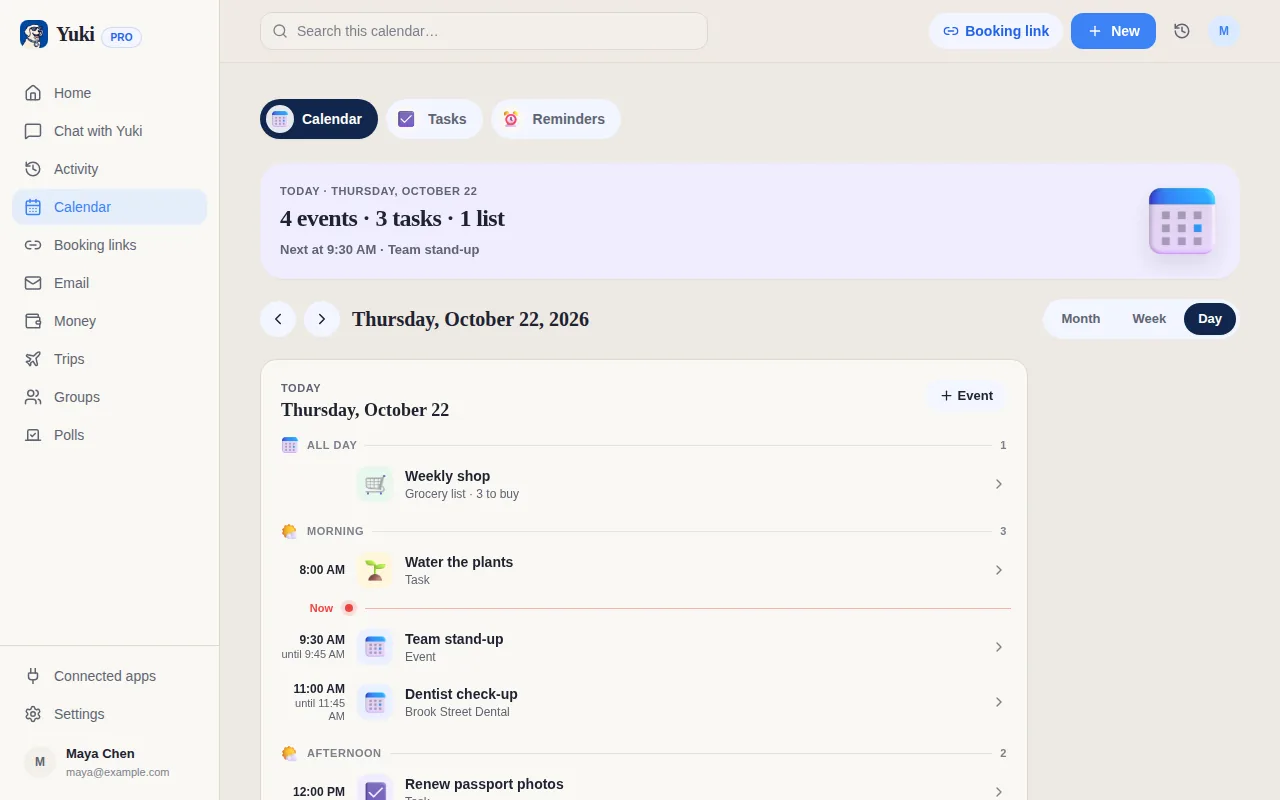
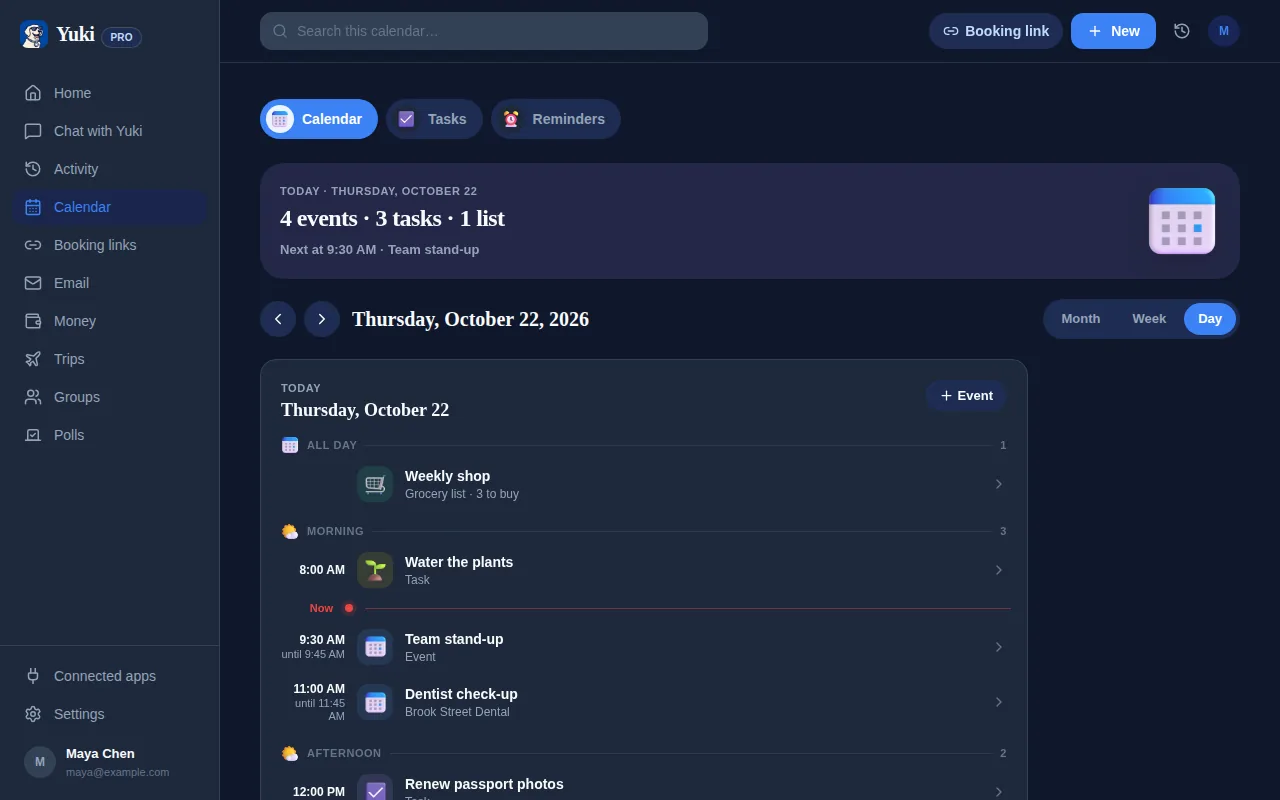
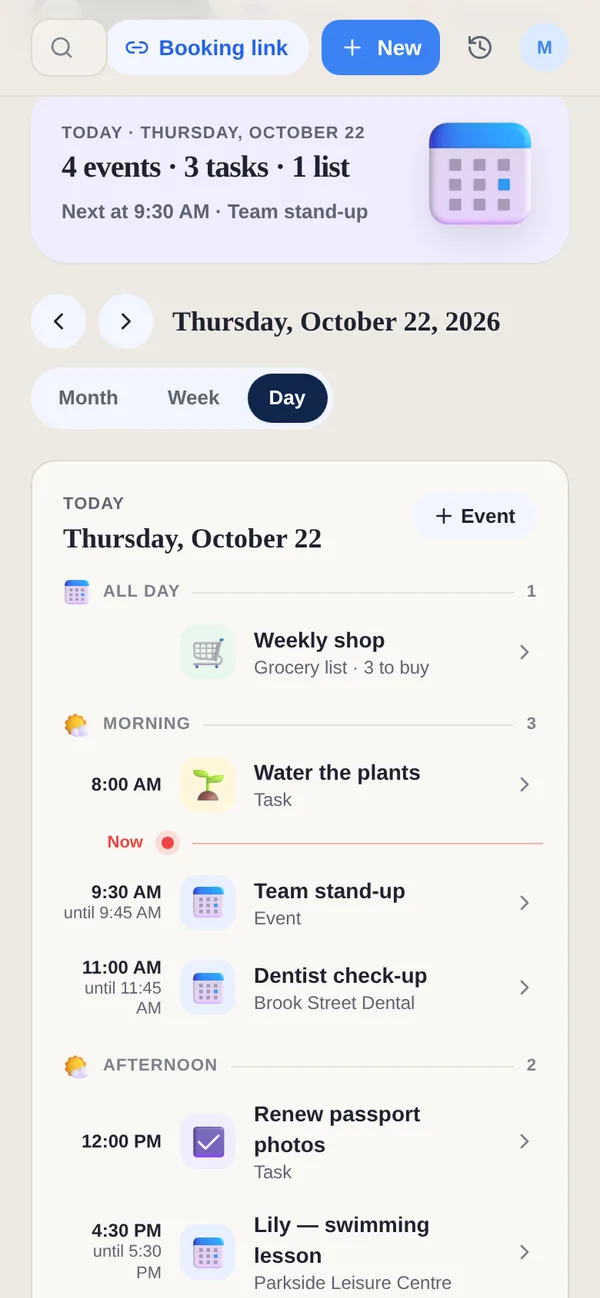
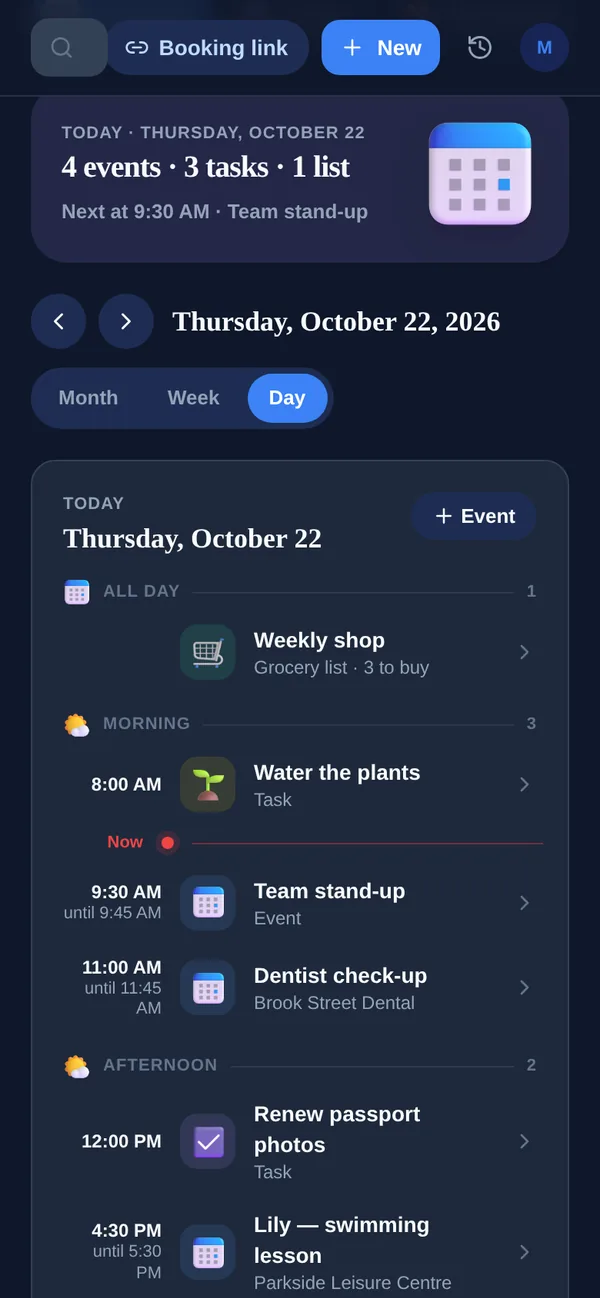
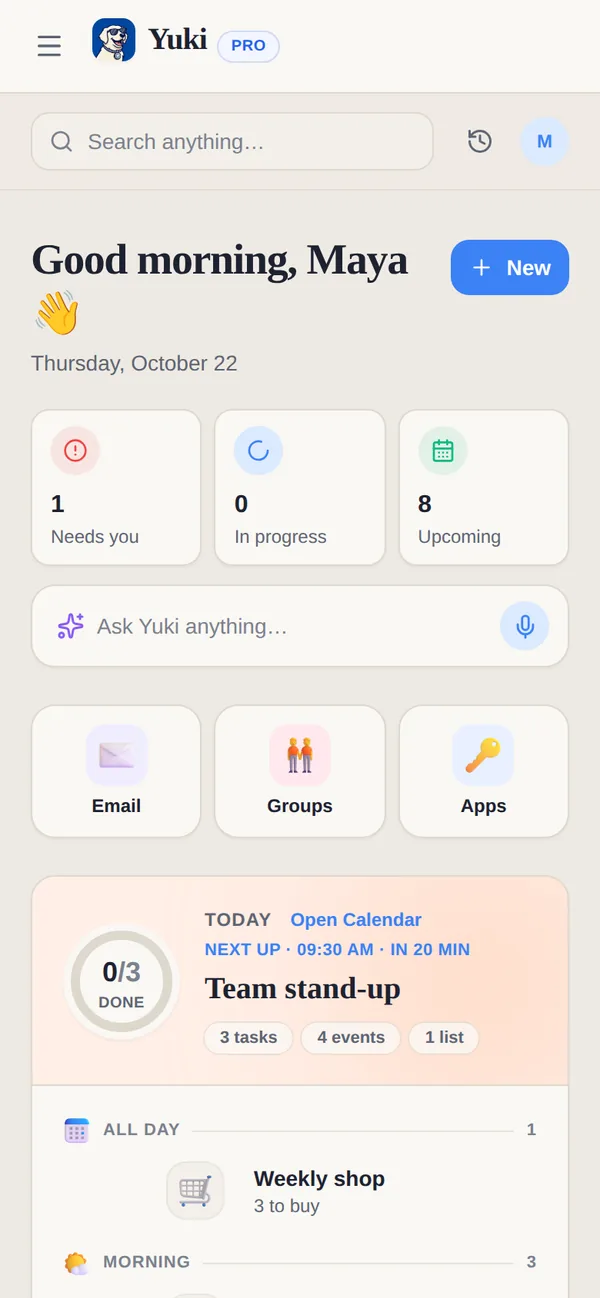
Este es el modelo que usa Yuki. Se conecta a tu Gmail, convierte las confirmaciones, facturas e invitaciones que ya hay ahí en eventos de calendario, y los escribe de forma bidireccional en Google Calendar — así el calendario en el que ya vives se mantiene como la fuente de verdad, solo con mucho menos tecleo. En iOS también puede escribir en Apple Calendar.
Configúralo para que tu bandeja de entrada alimente tu calendario
Todo el sentido es hacer esto una vez y dejar de pensarlo. Con Yuki (gratis, iOS y Android), la configuración lleva unos minutos y luego funciona en segundo plano: conectas tu correo, lee los eventos en toda tu bandeja de entrada, y mantiene Google Calendar lleno a medida que llegan nuevas confirmaciones.
Como Yuki lee la misma bandeja de entrada para todo, el calendario no es lo único que se rellena — el mismo correo de vuelo se convierte en un itinerario de viaje, la misma factura se convierte en un gasto controlado, y los eventos compartidos pueden fluir a un calendario de grupo para una pareja o familia. Ese es el valor más profundo: una conexión elimina en silencio la carga mental de acordarte de registrar cada plan a mano.
Paso a paso
- 1Instala Yuki (gratis) en iOS o Android y crea una cuenta.
- 2Conecta tu bandeja de entrada de Gmail — esto es lo que permite que Yuki lea los eventos, confirmaciones e invitaciones que ya hay en tu correo.
- 3Concede acceso a Google Calendar para que Yuki pueda escribir eventos de forma bidireccional en el calendario que ya usas.
- 4Deja que se ejecute la primera sincronización. Yuki escanea tu bandeja de entrada y convierte reservas, citas e invitaciones en eventos de calendario automáticamente.
- 5Revisa los eventos que saca a la luz; ajusta cualquier cosa y el cambio se conserva en vez de sobrescribirse en la próxima sincronización.
- 6Opcionalmente, comparte eventos a un calendario de grupo para una pareja, familia o compañeros de piso para que todos vean el mismo plan.
- 7Déjalo funcionando — las confirmaciones nuevas que llegan a tu bandeja de entrada fluyen a Google Calendar por su cuenta.