
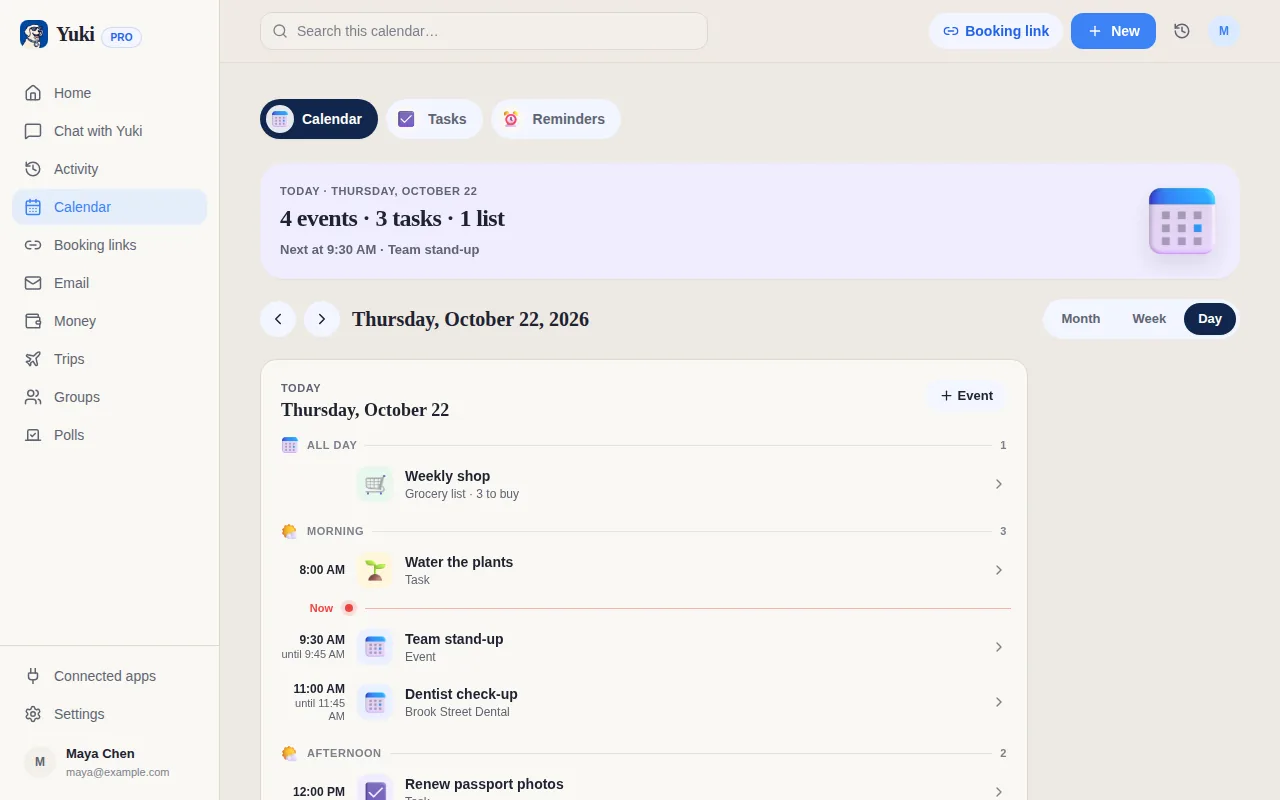
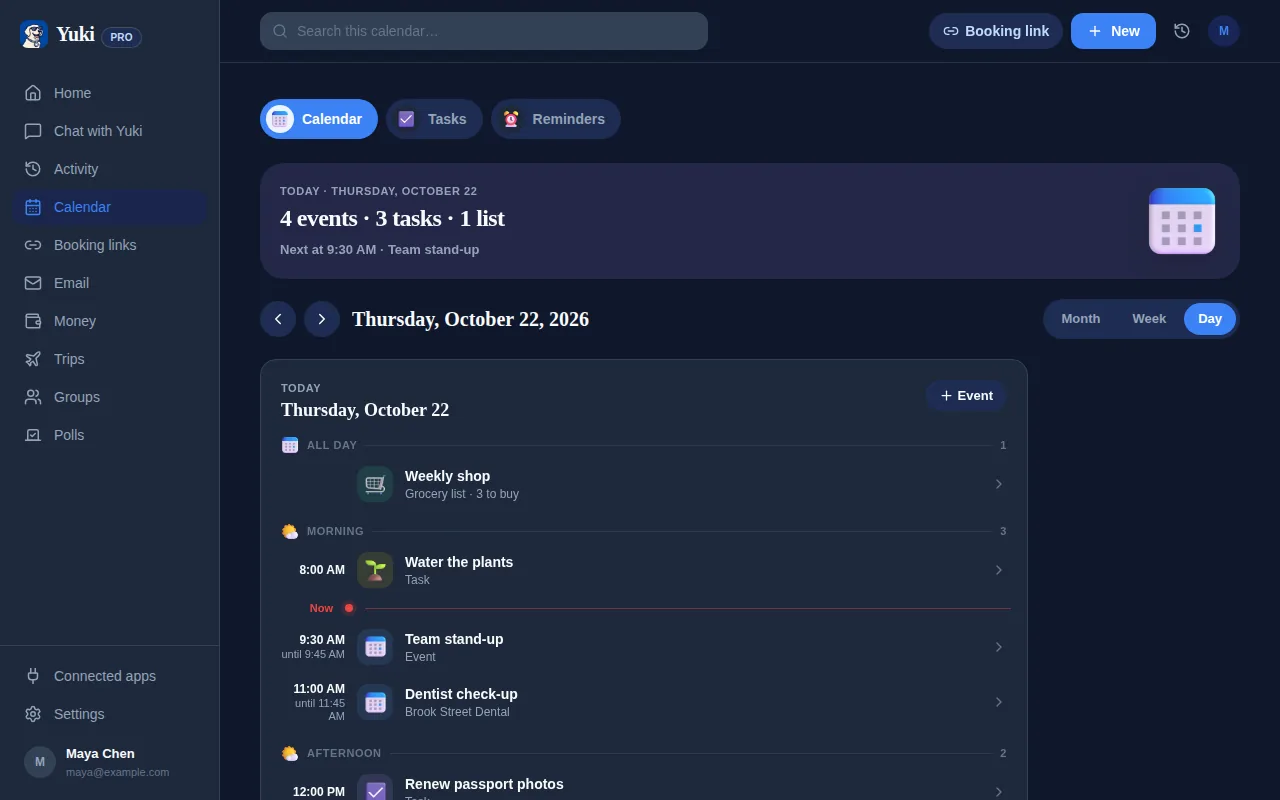
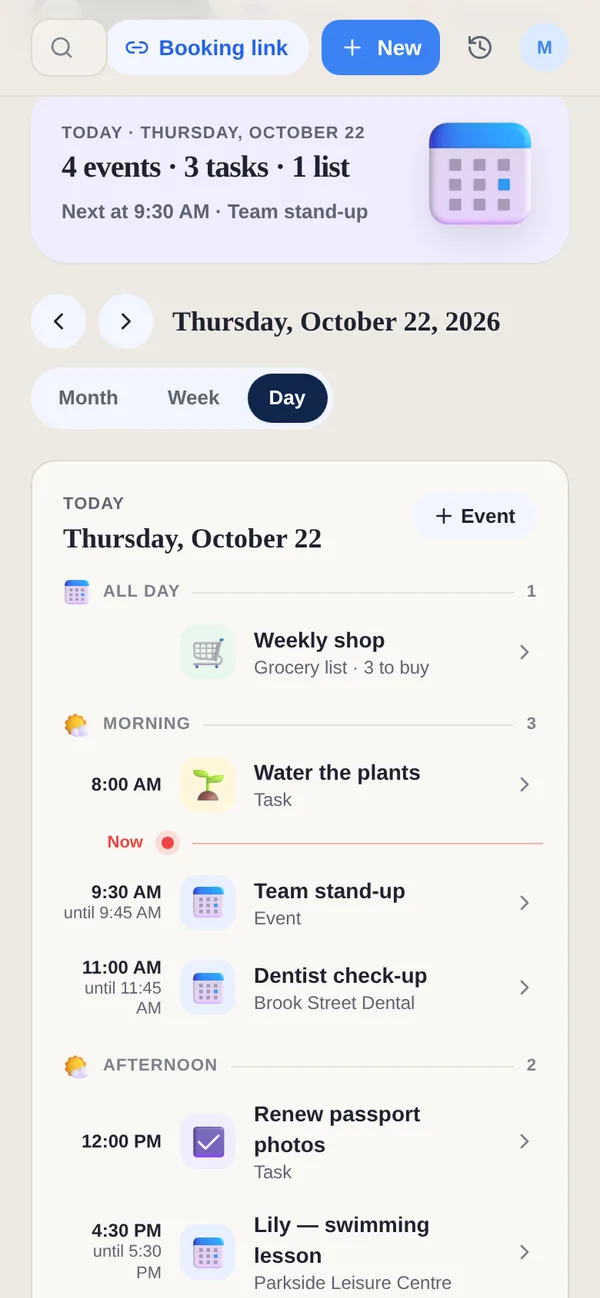
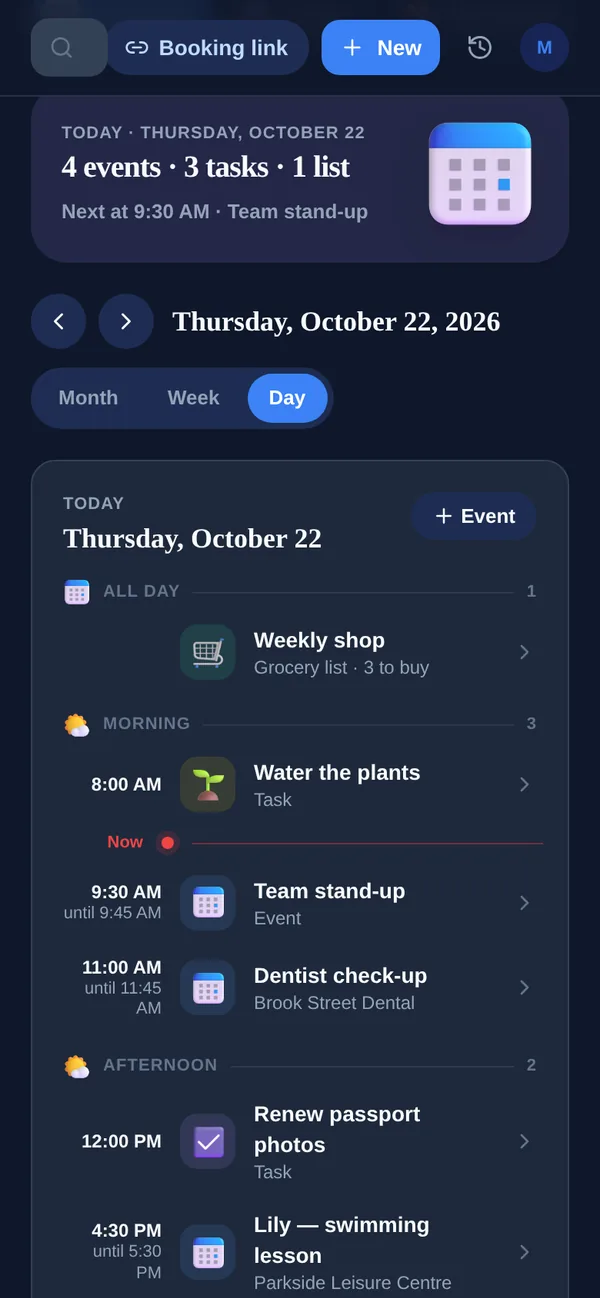
Casi cada cita que haces llega primero como un correo: la confirmación del dentista, el itinerario del vuelo, la reserva de la cena, la cita de la reunión de padres, la ventana de entrega. Y sin embargo, el trabajo de llevar esos detalles a tu calendario sigue recayendo en ti — entrecerrando los ojos ante una confirmación, retecleando la fecha, la hora, la dirección, el número de confirmación, y esperando no haberte equivocado con la zona horaria. Es pequeño, repetitivo e interminable, y es exactamente el tipo de recordar-y-transcribir que consume tu atención en silencio. Esta guía cubre las formas reales de llevar las confirmaciones de correo a tu calendario sin hacer esa transcripción a mano — los trucos integrados que funcionan hoy, sus límites, y cómo una herramienta como Yuki lee tu bandeja de entrada y mantiene tu calendario lleno por ti.
Por qué copiar y pegar a mano sigue fallando
El problema no es que estés desorganizado — es que el sistema te pide ser una máquina de transcripción fiable para siempre. Cada correo de confirmación es una pequeña tarea de entrada de datos, y las que se te escapan son invisibles hasta que has duplicado reservas un sábado o te has presentado a una cita reprogramada el día equivocado.
También hay un impuesto de memoria que nunca aparece en ninguna lista de tareas: llevar en la cabeza "todavía tengo que añadir la revisión de la vista a mi calendario" hasta que vuelves a un teclado. Multiplica eso por vuelos, reservas, actividades de los niños y entregas y obtienes una carga mental de bajo grado que te sigue a todas partes. La solución no es más disciplina — es dejar de ser el puente entre la bandeja de entrada y el calendario.
Las opciones integradas — y dónde se detienen
Existen algunos trucos nativos. Gmail puede añadir automáticamente ciertos eventos a Google Calendar cuando un remitente usa marcado estructurado — aerolíneas, algunos hoteles y grandes plataformas de reserva. Muchos servicios también adjuntan un archivo .ics que puedes tocar para añadir el evento. Y siempre puedes reenviar una confirmación a la dirección de correo de entrada de tu calendario si la admite.
La trampa es la cobertura. Estos solo se activan cuando el remitente formatea las cosas a la perfección, algo que la mayoría de los negocios locales, clínicas, colegios y restaurantes pequeños no hacen. Eso te deja de nuevo en servicio manual precisamente para las citas más fáciles de olvidar. Además funcionan de un evento en uno y no conectan los puntos — un vuelo, un hotel y una reserva de cena siguen siendo tres bloques de calendario sin relación en vez de un solo viaje.
- Añadir automático de Gmail: solo funciona con remitentes que usan marcado de esquema estructurado
- Adjuntos ICS: fiables pero requieren que abras y toques cada uno
- Reenviar al calendario: manual, y a menudo estropea la hora o la ubicación
- Ninguno de ellos lee las confirmaciones humanas y desordenadas de la mayoría de las citas reales
Deja que un asistente lea la bandeja de entrada por ti
El enfoque más duradero es dejar que algo lea tu bandeja de entrada como lo harías tú y extraiga la cita sin importar cómo esté formateado el correo. Eso es lo que hace Yuki: conectas Gmail, y convierte las confirmaciones, reservas e invitaciones que ya hay ahí en eventos de calendario — fecha, hora, ubicación y número de confirmación extraídos por ti.
Como escribe de forma bidireccional en Google Calendar, los eventos aterrizan en el calendario en el que ya vives en vez de en un silo aparte; en iOS también puede escribir en Apple Calendar. Y no se detiene en las entradas de calendario — el mismo escaneo de la bandeja de entrada construye itinerarios de viaje a partir de tus confirmaciones de vuelo y hotel, controla los recibos y facturas que encuentra, y sigue las ventanas de entrega, así que los detalles que de otro modo volverías a introducir en cinco apps distintas se organizan de una vez.
El punto no es la novedad — es que el recordar y transcribir salen de tu plato. Yuki actúa como una capa de memoria sobre tu bandeja de entrada, así que una confirmación que miraste una vez se convierte en un evento en el que puedes confiar sin que hagas nada más con ella.
- Lee confirmaciones reales, no solo el marcado perfectamente formateado del remitente
- Extrae fecha, hora, ubicación y detalles de confirmación automáticamente
- Escribe de forma bidireccional en Google Calendar (Apple Calendar en iOS)
- Agrupa reservas relacionadas en itinerarios de viaje en vez de eventos sueltos
Comparte el calendario para que nadie tenga que reenviar nada
La mitad del impuesto de copiar y pegar en un hogar ni siquiera tiene que ver con tu propio calendario — es transmitir detalles a otra persona. Añades la cita del dentista de tu hijo, luego le mandas un mensaje a tu pareja con la hora; la añade de nuevo por su lado. Ahora hay dos fuentes de verdad y una de ellas está equivocada.
Con los grupos compartidos, la cita que Yuki extrae de tu bandeja de entrada puede aparecer para una pareja, familia, coparentalidad o compañeros de piso al mismo tiempo — sin reenviar, sin el "¿lo pusiste en el calendario?". La coordinación ocurre una vez, para todos, que es donde el ahorro de carga mental realmente se multiplica.
Paso a paso
- 1Conecta la bandeja de entrada donde llegan tus confirmaciones — Gmail — a Yuki cuando configures la app.
- 2Deja que Yuki escanee confirmaciones: citas, itinerarios de vuelos y hoteles, reservas de restaurantes y eventos, y ventanas de entrega.
- 3Revisa los eventos que Yuki extrae — la fecha, hora, ubicación y detalles de confirmación se extraen del correo por ti.
- 4Conecta Google Calendar para que los eventos se escriban de forma bidireccional; en iOS, Apple Calendar también es compatible.
- 5Comprueba que las zonas horarias sean correctas para cualquier cosa que reservaras viajando o entre regiones.
- 6Comparte el calendario en un grupo para que una pareja, familia o coparentalidad vea los mismos eventos sin que tengas que reenviar nada.