

Réserver un voyage est excitant. Le suivre ne l’est pas. Le temps que vous ayez réservé un vol, un hôtel, un transfert aéroport et une voiture de location, les détails sont dispersés dans une douzaine d’e-mails de confirmation de quatre entreprises différentes — chacune avec son propre format, ses propres horaires et son propre numéro de confirmation dont vous aurez besoin à l’enregistrement. L’ancienne solution est un tableur manuel ou une note que vous reconstruisez à chaque voyage. La meilleure solution est de laisser les e-mails que vous avez déjà s’assembler tout seuls en un seul itinéraire, jour par jour. Ce guide vous montre comment le faire à la main si vous voulez tout contrôler, et comment le rendre automatique pour que votre itinéraire soit toujours à jour — même quand la compagnie aérienne déplace votre vol.
Commencez par ce qui est déjà dans votre boîte mail
Vous n’avez presque jamais besoin de chercher les détails de voyage — ils vous ont été envoyés par e-mail au moment même où vous avez réservé. Un itinéraire complet, ce n’est en réalité que quatre types de confirmation, rassemblés dans le bon ordre :
L’erreur que fait la plupart des gens, c’est de traiter chaque e-mail comme une chose séparée à retenir. Une confirmation de vol, une réservation d’hôtel et une location de voiture pour le même voyage sont un seul itinéraire déguisé en trois costumes. Le travail consiste à les relier.
- Vols — compagnie, numéro de vol, heures de départ/arrivée, terminal, et le code de réservation (PNR) dont vous aurez besoin au comptoir
- Hôtels — nom et adresse de l’établissement, dates d’arrivée/départ, et numéro de confirmation
- Voitures de location et transferts — lieu et heure de prise en charge et de restitution, plus le numéro de réservation
- Visites, événements et restaurants — tout ce qui a une date et une heure qui ancre une partie de la journée
Assemblez les détails en une seule vue chronologique
Un itinéraire n’est utile que lorsqu’il est ordonné selon le moment où les choses se produisent, pas selon la date de réservation. Disposez tout le voyage sur une frise : atterrissage à 14h40, enregistrement à l’hôtel dès 15h, réservation de dîner à 19h30, prise en charge de la voiture le lendemain matin à 9h. Le voir en séquence, c’est ce qui fait ressortir les problèmes — la correspondance serrée, l’hôtel où vous ne pouvez pas vous enregistrer avant trois heures, le retour de voiture qui ne laisse aucune marge avant la fermeture de votre porte d’embarquement.
C’est aussi là que vous repérez les trous qui coûtent vraiment de l’argent et du stress : un vol de nuit qui atterrit avant l’ouverture de l’enregistrement, un retour de location dans un terminal différent de votre départ, des réservations qui se chevauchent à cause d’un changement que vous avez oublié d’annuler. Un tas d’e-mails plat cache tout ça. Un seul itinéraire chronologique le rend évident.
Gardez les numéros de confirmation attachés à chaque élément. Tout l’intérêt d’un itinéraire, c’est que lorsque vous êtes debout à un comptoir de location avec un téléphone déchargé, vous n’avez pas à faire défiler vos e-mails — le numéro dont vous avez besoin est juste là, à côté de l’heure de prise en charge.
Laissez Yuki le construire et l’entretenir automatiquement
Faire tout cela à la main fonctionne une fois. Le problème, c’est que les plans changent — les compagnies aériennes vous réservent à nouveau, les hôtels s’ajustent, vous ajoutez une visite de dernière minute — et un itinéraire construit à la main devient obsolète dès qu’il est terminé. C’est exactement la charge mentale que Yuki est conçu pour retirer.
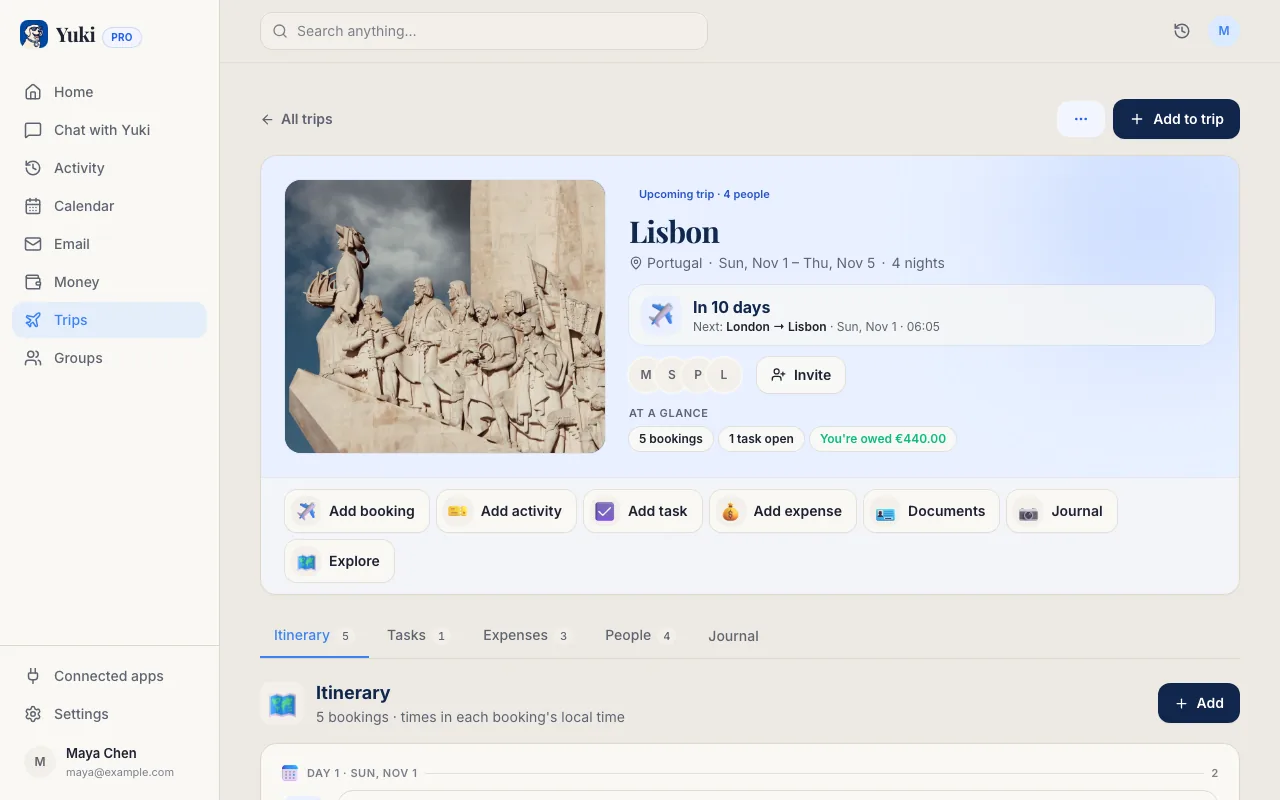
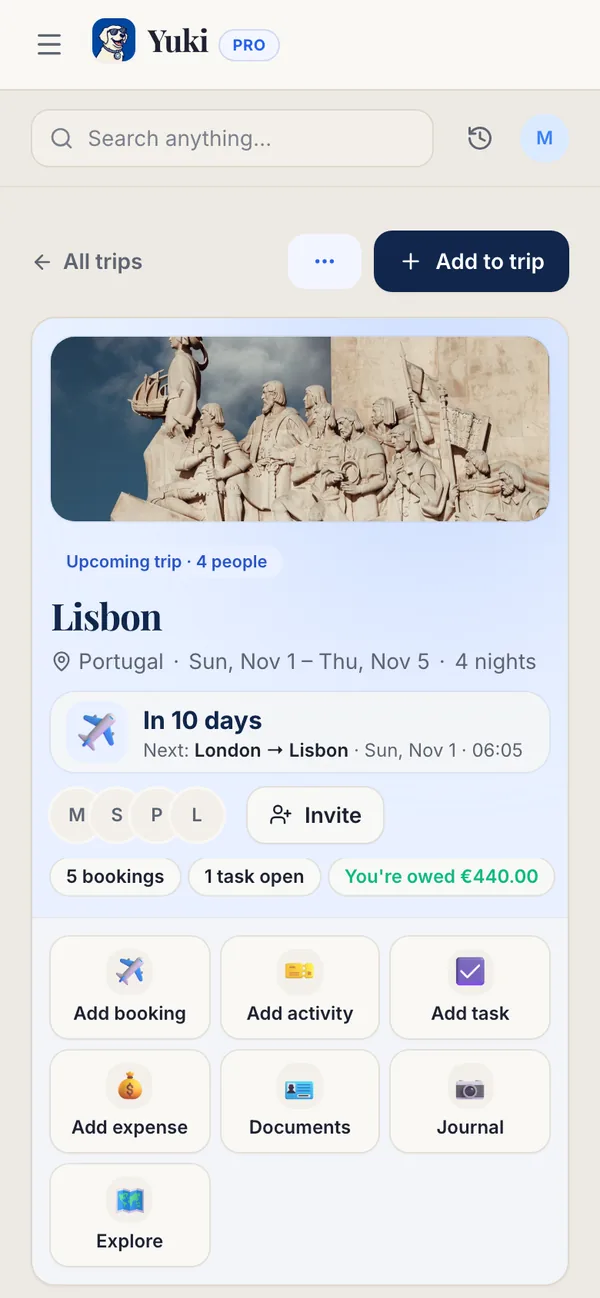
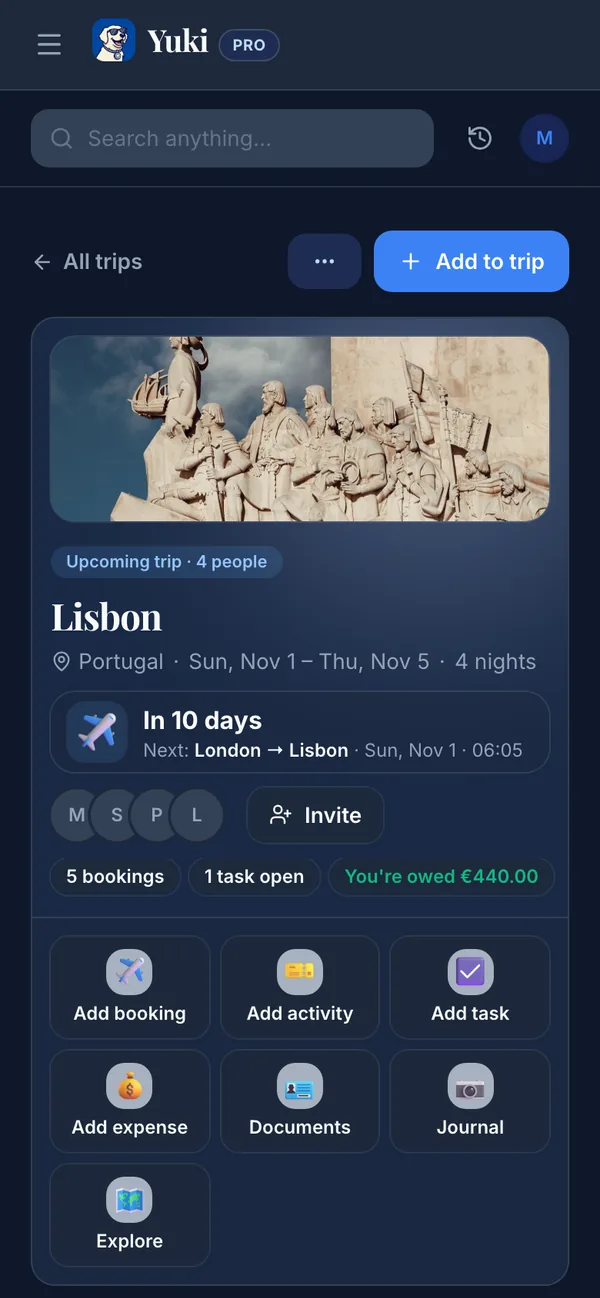
Connectez votre Gmail et Yuki lit les confirmations déjà présentes dans votre boîte mail, reconnaît lesquelles appartiennent au même voyage, et assemble automatiquement les vols, hôtels et voitures de location en un seul itinéraire — dans l’ordre, avec numéros de confirmation et adresses en place. Quand une nouvelle confirmation ou un changement arrive dans votre e-mail, il met à jour le voyage au lieu de vous laisser le remarquer. C’est de la mémoire et de la coordination qui travaillent en arrière-plan, pour que le voyage reste organisé sans que vous ayez à le gérer.
Comme Yuki écrit aussi dans votre agenda, le même voyage apparaît aux côtés du reste de votre vie — synchronisé de façon bidirectionnelle avec Google Calendar (et Apple Calendar sur iOS) — donc un départ à 6h du matin n’est pas une surprise enfouie dans un e-mail que vous avez oublié de rouvrir.
Partagez-le et gardez tout le voyage ensemble
La plupart des voyages ne sont pas solitaires. Un partenaire, une famille ou des amis ont besoin des mêmes horaires de vol et de la même adresse d’hôtel que vous — et retransférer une chaîne de confirmations à tout le monde est sa propre corvée. Avec les groupes partagés, l’itinéraire vit dans un seul endroit que tout le groupe peut voir, donc personne ne demande « on atterrit à quelle heure ? » la veille au soir.
L’itinéraire n’est aussi qu’une partie d’un voyage. La même boîte mail qui contient votre confirmation de vol contient les reçus de réservation, les charges d’acompte, et les abonnements que vous voudriez peut-être suspendre pendant votre absence. Yuki suit ces dépenses aux côtés du voyage, pour que « combien ça a coûté » ait une réponse sans projet de reconstruction à votre retour. Avec le temps, les endroits où vous allez s’accumulent même en un passeport de voyage des pays visités — un enregistrement que vous n’avez pas eu à tenir.
Étape par étape
- 1Rassemblez toutes les confirmations du voyage : vols, hôtels, voitures de location, transferts, et toute réservation de visite ou d’événement — elles arrivent généralement de différents expéditeurs à différents jours.
- 2Extrayez de chacune les détails essentiels : dates et heures exactes, numéros de confirmation/référence, adresses, et infos de terminal/porte ou de lieu de prise en charge.
- 3Triez tout par ordre chronologique, jour par jour, pour que départs, enregistrements et prises en charge s’alignent comme vous les vivrez réellement — pas dans l’ordre où vous les avez réservés.
- 4Notez les trous et chevauchements : une escale de 40 minutes, un enregistrement d’hôtel des heures après votre atterrissage, un retour de voiture qui laisse peu de marge avant votre vol.
- 5Mettez l’itinéraire quelque part accessible hors ligne et partagez-le avec quiconque voyage avec vous.
- 6Ou connectez Gmail à Yuki et sautez les étapes 1 à 5 — il détecte les confirmations, les regroupe en un voyage, et garde l’itinéraire à jour quand les plans changent.