
Presque chaque rendez-vous que vous avez existe déjà par écrit quelque part — un e-mail de confirmation de dentiste, une invitation d’agenda d’un collègue, un reçu « votre réservation est confirmée », un avis scolaire. Pourtant, la plupart des gens retapent encore tout ça à la main : ouvrir l’e-mail, lire la date, passer à l’agenda, tapoter « nouvel événement », taper le titre, régler l’heure, ajouter l’adresse, enregistrer. Faites ça quelques fois par semaine et vous avez transformé une information déjà structurée en une heure de saisie fastidieuse — plus la taxe mentale de se souvenir de le faire du tout. Ce guide couvre les façons pratiques d’arrêter, des astuces intégrées de votre appli d’agenda jusqu’à laisser un assistant comme Yuki lire votre boîte mail et créer les événements pour vous.
Pourquoi la saisie manuelle coûte plus qu’il n’y paraît
Le coût évident de saisir les rendez-vous à la main, c’est le temps, mais le plus gros coût, c’est la charge mentale. Chaque confirmation non saisie devient quelque chose que vous devez garder en tête : une réservation dont vous vous occuperez plus tard, une reprogrammation dont vous vous souvenez à moitié, un contrôle d’enfant dont vous êtes à peu près sûr que c’est jeudi. Ce fait de se souvenir en arrière-plan est épuisant, et c’est exactement là que les choses passent entre les mailles.
La saisie manuelle est aussi sujette à des erreurs qui comptent. Retaper une heure invite des erreurs d’un cran (14h30 devient 15h30, AM devient PM), et la plupart des gens sautent complètement l’adresse et le numéro de confirmation — donc vous êtes de retour dans votre boîte mail à chercher l’e-mail de toute façon quand vous êtes debout devant le bâtiment.
La solution n’est pas d’être plus discipliné pour taper plus vite. C’est d’arrêter de taper. Les données du rendez-vous sont déjà structurées dans l’e-mail ; le travail consiste à les déplacer dans votre agenda sans copier-coller humain au milieu.
Utilisez ce que votre agenda fait déjà gratuitement
Avant d’ajouter un nouvel outil, exploitez l’automatisation que vos applis existantes offrent déjà. Deux habitudes éliminent une part surprenante de saisie manuelle.
D’abord, acceptez toujours les vraies invitations d’agenda (fichiers .ics et invitations Google/Outlook) au lieu de les retaper — tapoter Oui écrit l’événement, le met à jour quand l’organisateur reprogramme, et garde le lien vidéo. Ensuite, utilisez la saisie rapide en langage naturel : dans Google Calendar, vous pouvez taper « Dentiste mardi 15h » et il analyse la date et l’heure pour vous, ce qui est bien plus rapide que le formulaire à remplir tapotement par tapotement.
L’écart que ces astuces laissent, c’est tout ce qui arrive en prose ordinaire — « Votre table est réservée pour vendredi à 20h », « Votre colis arrive jeudi », « Commande confirmée, retrait samedi 10h ». Ce ne sont pas des invitations et il n’y a pas de bouton, donc elles retombent en saisie manuelle à moins que quelque chose ne lise l’e-mail pour vous.
- Acceptez les invitations .ics et Google/Outlook plutôt que de les retaper
- Utilisez la saisie rapide en langage naturel : « Déjeuner avec Sam jeu 13h »
- Activez « Événements depuis Gmail » si vous utilisez Google Calendar pour les vols et hôtels
- Fixez un rappel par défaut pour ne jamais avoir à en ajouter un manuellement
Laissez un assistant lire votre boîte mail et construire l’agenda
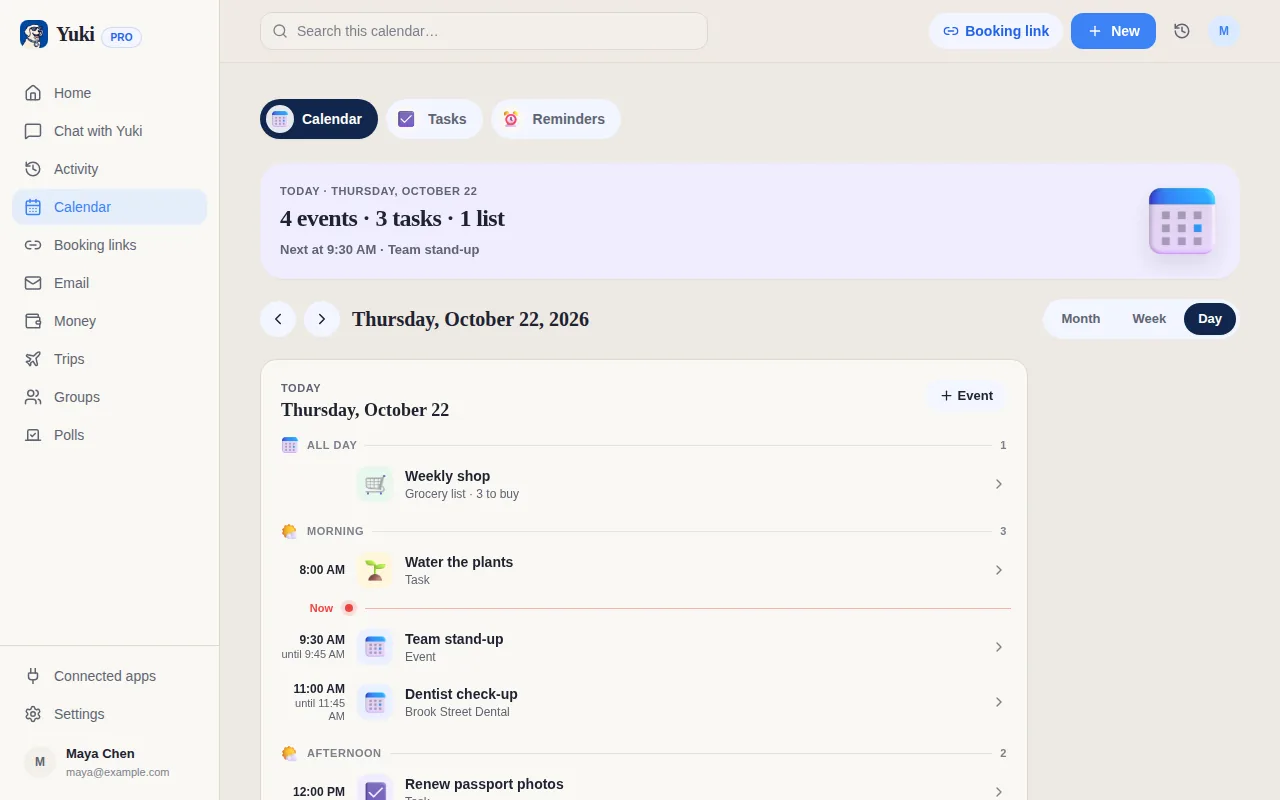
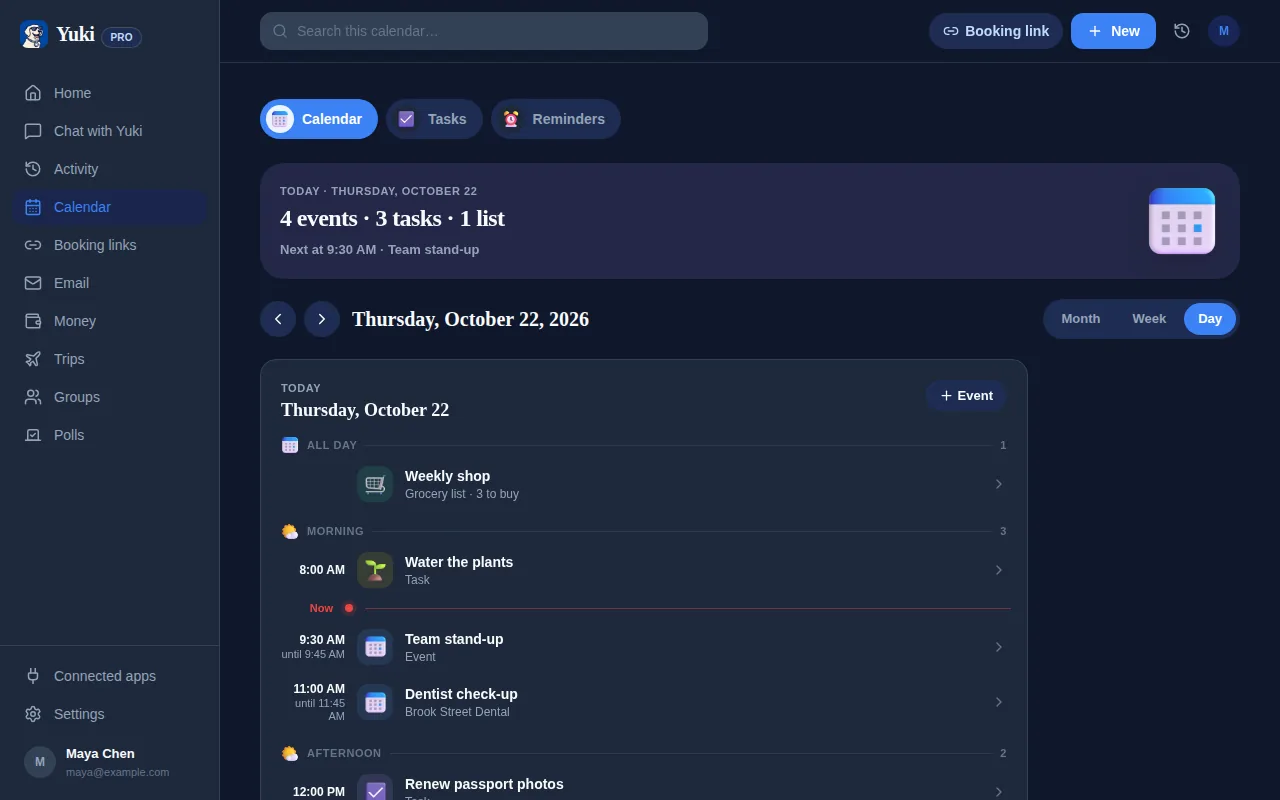
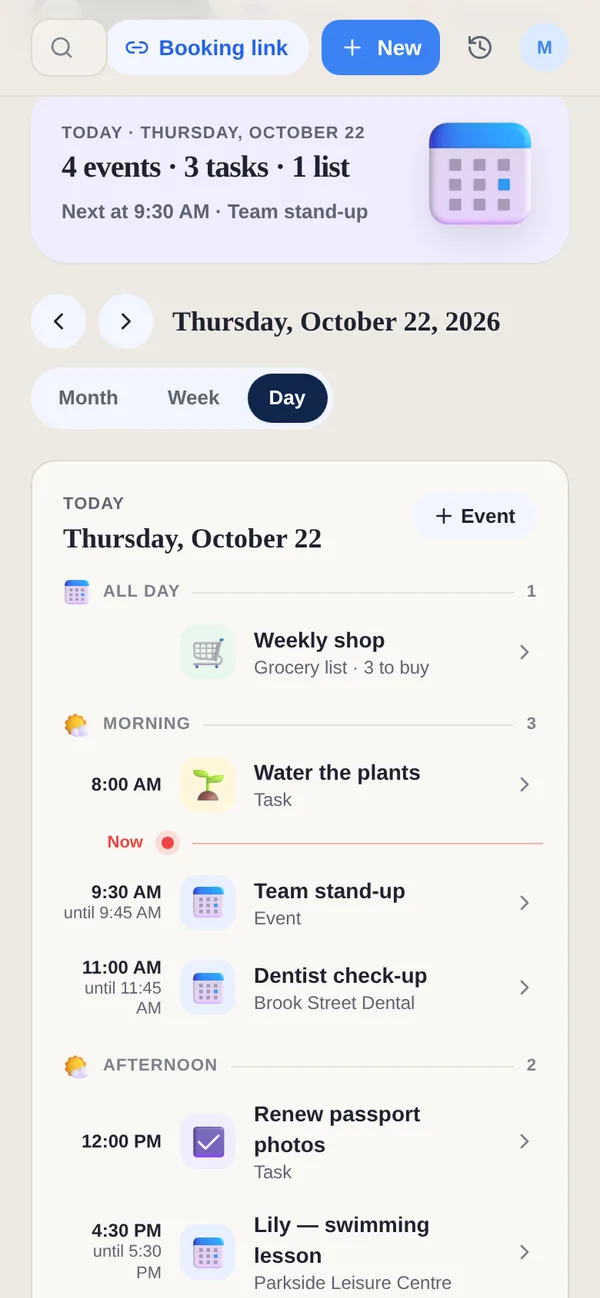
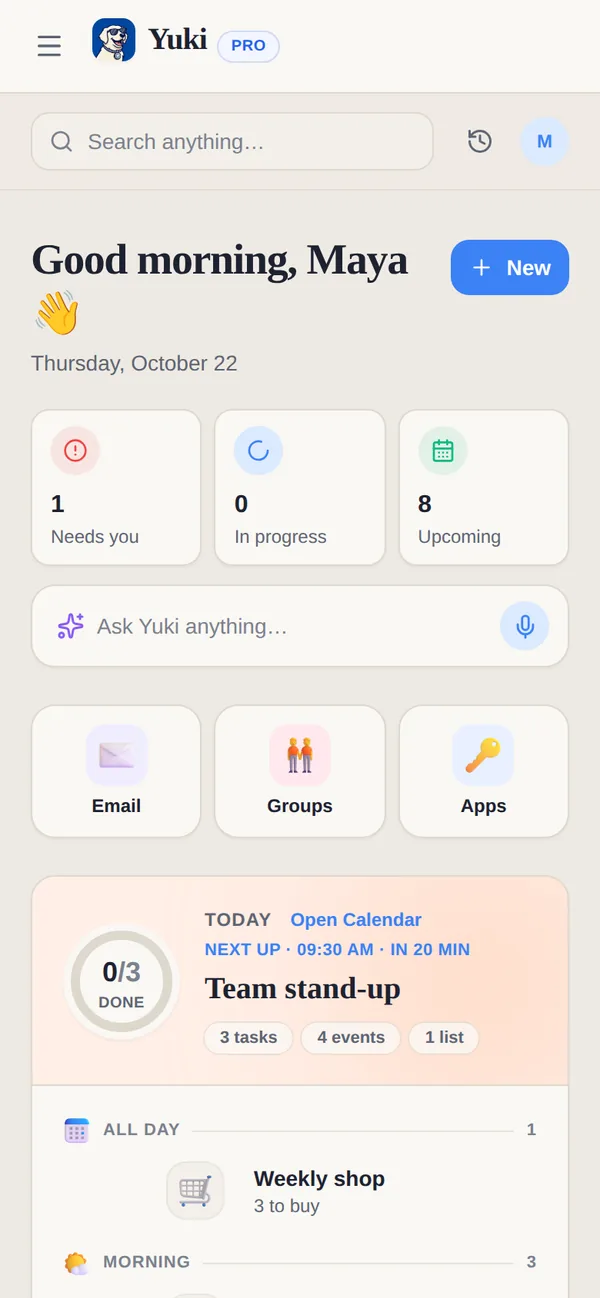
Le vrai gain, c’est de sauter entièrement l’étape boîte-mail-vers-agenda. C’est ce que fait Yuki : vous connectez Gmail une fois, et il lit les confirmations, reçus, factures et invitations déjà présents, puis transforme celles qui ont une date en vrais événements d’agenda — en écrivant de façon bidirectionnelle dans votre Google Calendar pour qu’ils apparaissent aux côtés de tout le reste (l’écriture dans Apple Calendar est réservée à iOS).
Comme il comprend le contenu plutôt que juste la date, l’événement atterrit complet : l’adresse du dentiste, le nom de la réservation, le numéro de confirmation, les horaires de vol. Vous ne retapez pas et vous ne fouillez pas dans votre boîte mail plus tard pour les détails — ils sont attachés à l’événement.
Il capture aussi les choses que la saisie rapide et les invitations manquent. Un vol devient un itinéraire de voyage, un reçu devient une dépense suivie, un renouvellement d’abonnement devient un rappel avant d’être prélevé. Le rendez-vous n’est qu’un résultat parmi d’autres de la lecture de la boîte mail une fois, ce qui réduit vraiment la charge mentale quotidienne de garder un agenda précis.
Faites-le tenir pour un foyer partagé
La saisie manuelle empire quand les rendez-vous de plus d’une personne comptent. Couples, familles et coparents finissent soit par se transférer des e-mails, soit par oublier de le faire, et l’agenda dérive vers l’obsolescence.
Les groupes partagés de Yuki permettent à un foyer de se coordonner sans le relais : le rendez-vous que produit la boîte mail d’une personne peut vivre dans un espace partagé pour que les autres personnes qui en ont besoin puissent le voir, aux côtés des dépenses partagées et du solde des comptes. Personne n’a besoin d’être la secrétaire de famille qui retape l’emploi du temps de tout le monde.
Le point est le même à n’importe quelle échelle — une boîte mail connectée, des rendez-vous qui apparaissent tout seuls, et beaucoup moins à retenir. Vous gardez un agenda auquel vous pouvez faire confiance sans faire la saisie de données qui le rendait pénible.
Étape par étape
- 1Ouvrez les paramètres de votre agenda et acceptez les vraies invitations (.ics, Google/Outlook) au lieu de les retaper.
- 2Apprenez la saisie rapide de votre agenda : tapez « Dentiste mar 15h » plutôt que de remplir le formulaire d’événement.
- 3Installez Yuki (gratuit, iOS et Android) et connectez votre compte Gmail une fois.
- 4Laissez Yuki scanner vos confirmations, reçus et invitations existants et transformer ceux qui ont une date en événements.
- 5Confirmez la synchronisation bidirectionnelle avec Google Calendar pour que les événements apparaissent à côté de tout le reste (l’écriture dans Apple Calendar est réservée à iOS).
- 6Pour un foyer, créez un groupe partagé pour que rendez-vous et détails soient visibles par les personnes qui en ont besoin.
- 7Vérifiez la première semaine, puis laissez les nouvelles confirmations affluer automatiquement au lieu de copier-coller.