
Almost every appointment you have already exists in writing somewhere — a dentist confirmation email, a calendar invite from a colleague, a "your reservation is confirmed" receipt, a school notice. Yet most people still retype all of it by hand: open the email, read the date, switch to the calendar, tap "new event," type the title, set the time, add the address, save. Do that a few times a week and you have turned information that was already structured into an hour of tedious data entry — plus the mental tax of remembering to do it at all. This guide covers the practical ways to stop, from the built-in tricks in your calendar app to letting an assistant like Yuki read your inbox and create the events for you.
Why manual entry costs more than it feels like
The obvious cost of hand-entering appointments is time, but the bigger cost is mental load. Every un-entered confirmation becomes something you have to hold in your head: a reservation you will deal with later, a reschedule you half-remember, a kid's checkup you are pretty sure is Thursday. That background remembering is draining, and it is exactly where things slip.
Manual entry is also error-prone in ways that matter. Retyping a time invites off-by-one mistakes (2:30 becomes 3:30, AM becomes PM), and most people skip the address and confirmation number entirely — so you are back in your inbox digging for the email anyway when you are standing outside the building.
The fix is not to be more disciplined about typing faster. It is to stop typing. The appointment data is already structured in the email; the job is to move it into your calendar without a human copy-paste in the middle.
Use what your calendar already does for free
Before adding any new tool, squeeze the automation your existing apps ship with. Two habits eliminate a surprising share of manual entry.
First, always accept real calendar invites (.ics files and Google/Outlook invites) instead of retyping them — tapping Yes writes the event, updates it when the organizer reschedules, and keeps the video link. Second, use natural-language quick-add: in Google Calendar you can type 'Dentist Tuesday 3pm' and it parses the date and time for you, which is far faster than the tap-through form.
The gap these leave is everything that arrives as plain prose — 'Your table is booked for Friday at 8,' 'Your parcel arrives Thursday,' 'Order confirmed, pickup Saturday 10am.' Those are not invites and there is no button, so they fall back to manual entry unless something reads the email for you.
- Accept .ics and Google/Outlook invites rather than retyping them
- Use quick-add natural language: 'Lunch with Sam Thu 1pm'
- Turn on 'Events from Gmail' if you use Google Calendar for flights and hotels
- Set a default reminder so you never have to add one manually
Let an assistant read your inbox and build the calendar
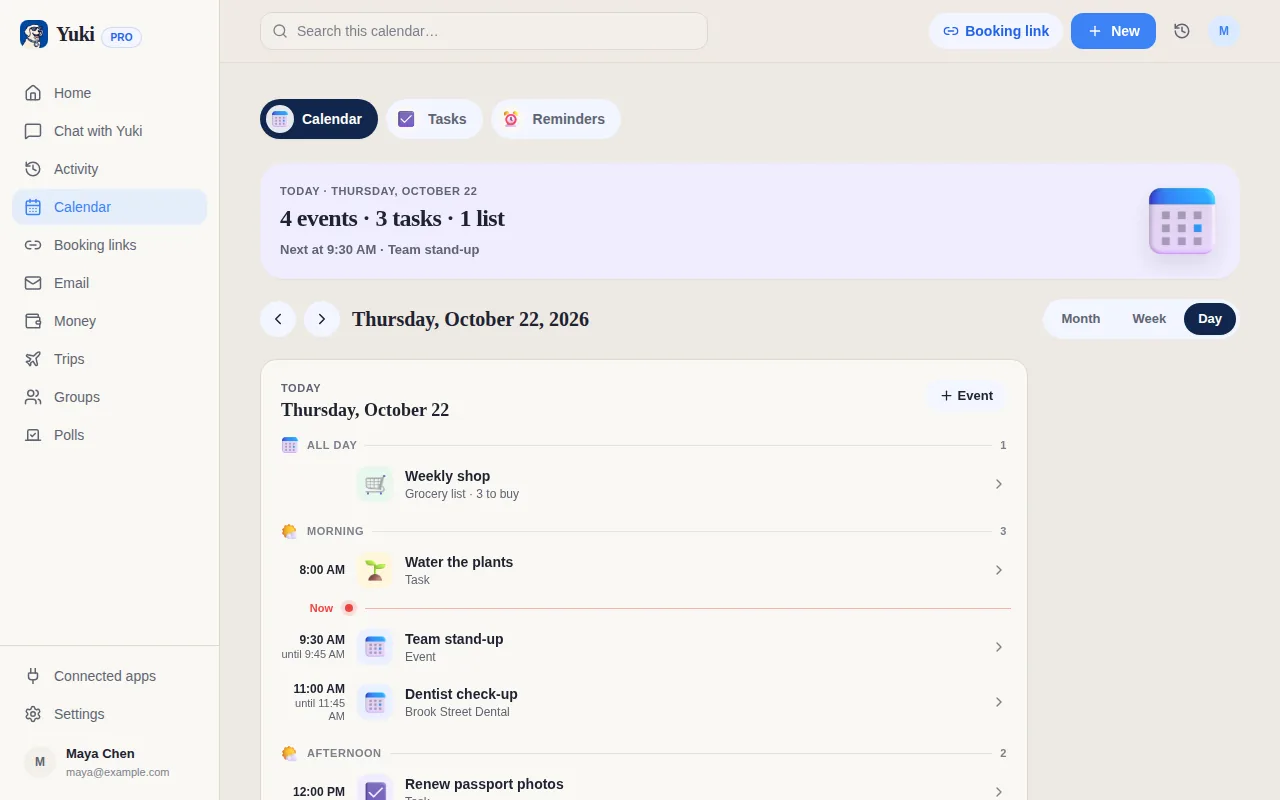
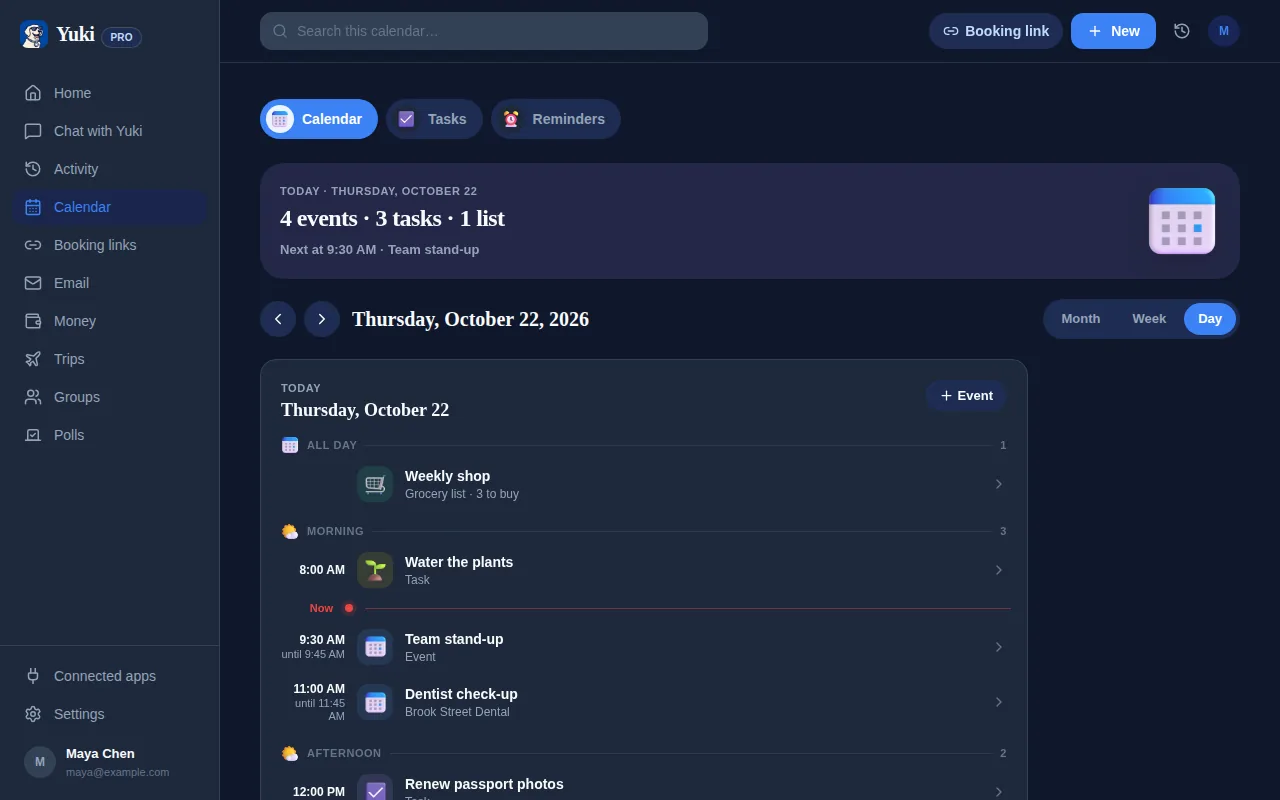
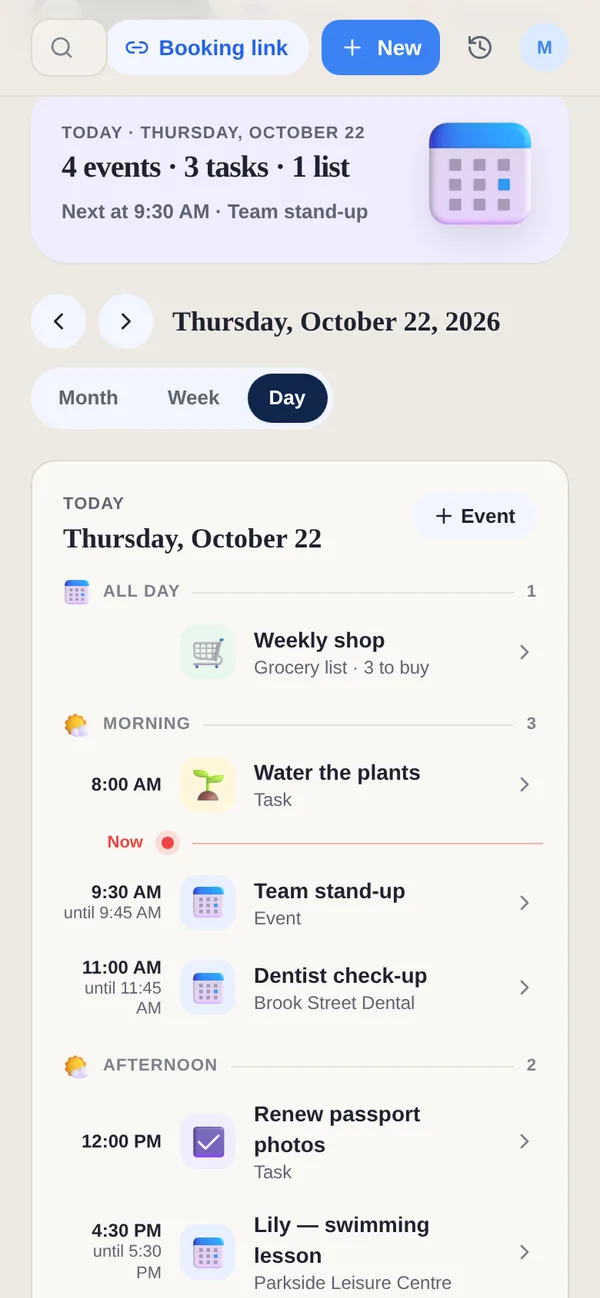
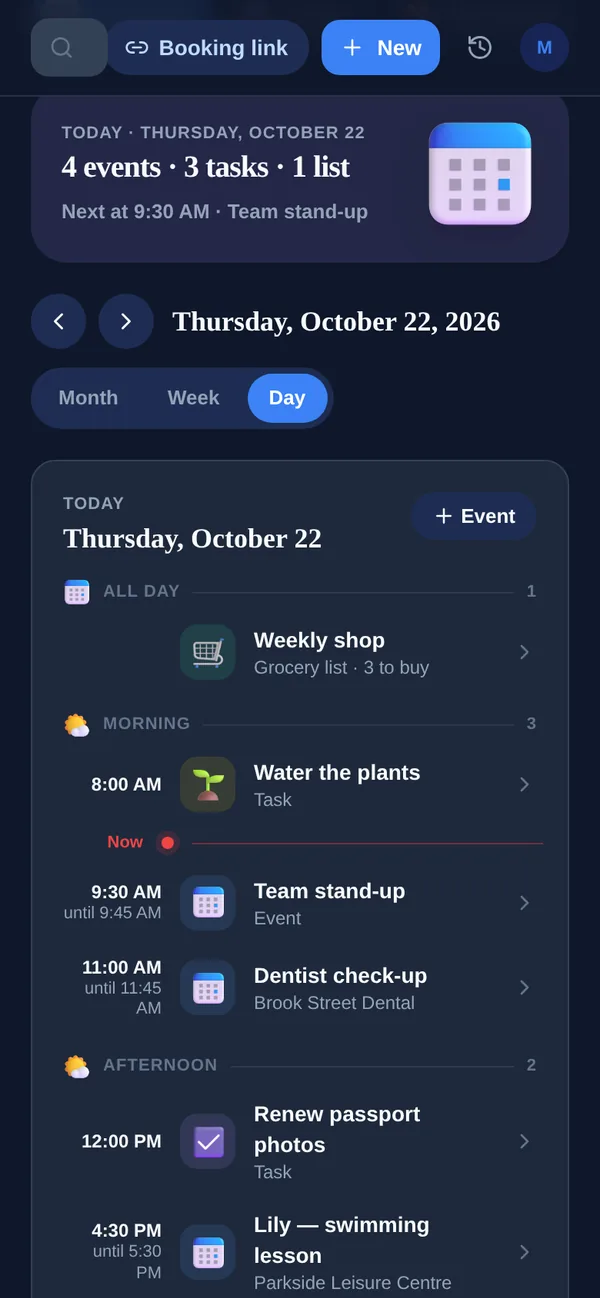
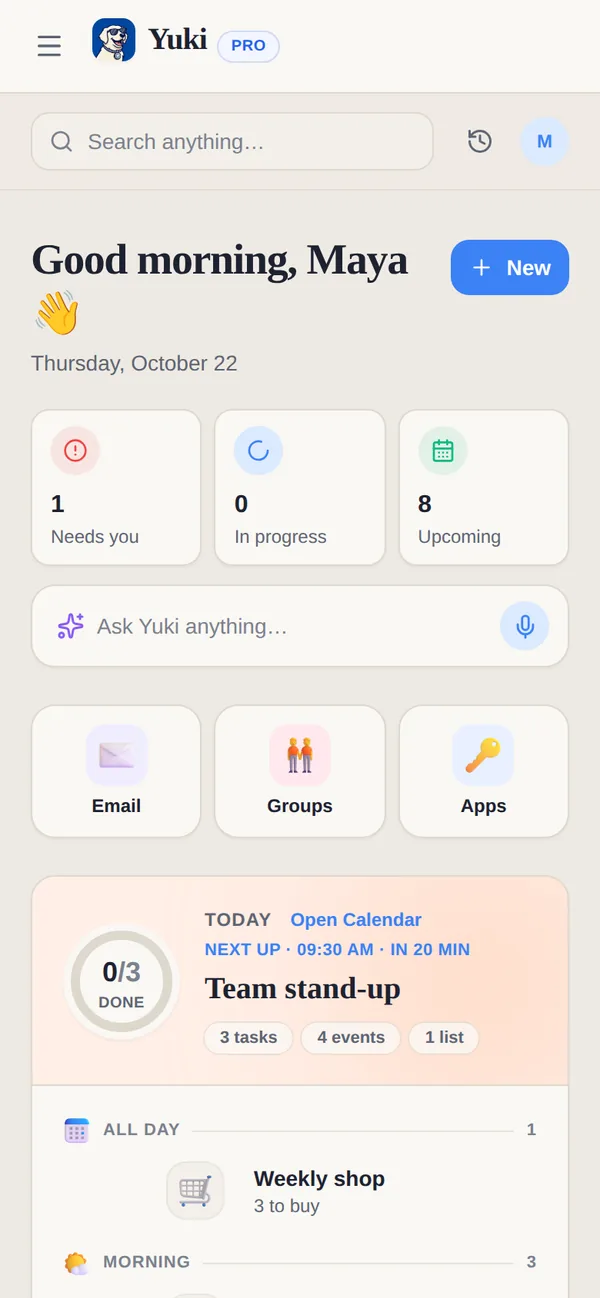
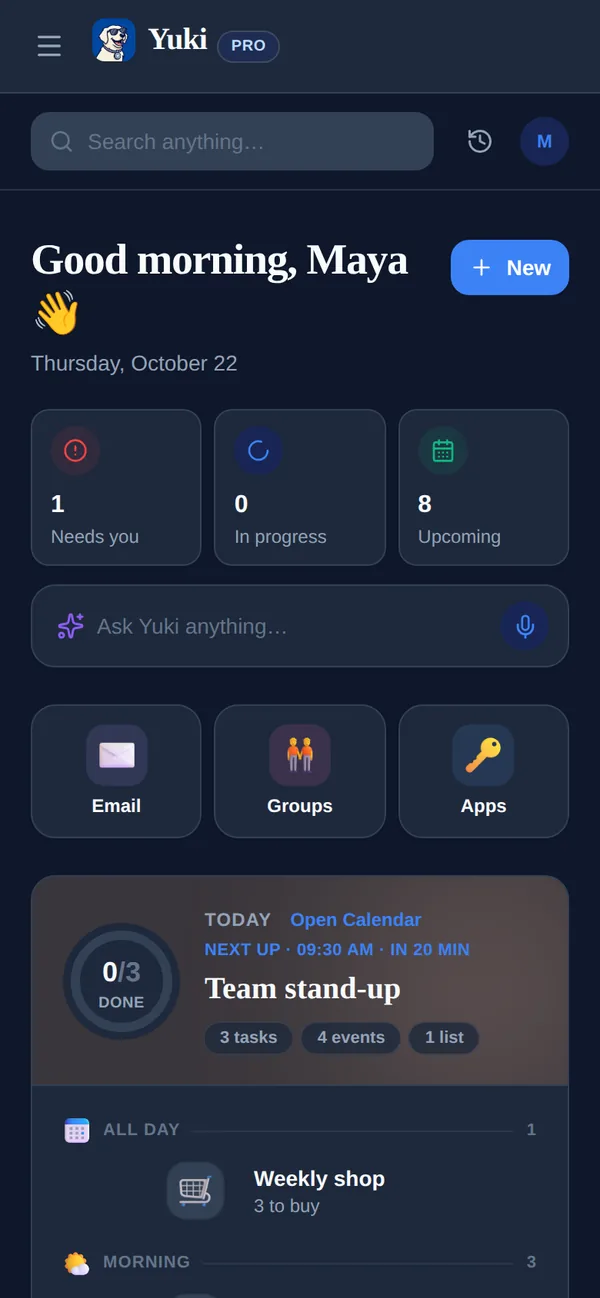
The real win is skipping the inbox-to-calendar hop entirely. This is what Yuki does: you connect Gmail once, and it reads the confirmations, receipts, bills and invites already there, then turns the ones with dates into real calendar events — writing two-way to your Google Calendar so they show up alongside everything else (Apple Calendar write is iOS-only).
Because it understands the content rather than just the date, the event lands complete: the dentist's address, the reservation name, the confirmation number, the flight times. You are not retyping and you are not hunting through your inbox later for the details — they are attached to the event.
It also catches the things quick-add and invites miss. A flight becomes a trip itinerary, a receipt becomes a tracked expense, a subscription renewal becomes a reminder before you are charged. The appointment is just one output of reading the inbox once, which is what actually lowers the day-to-day mental load of keeping a calendar accurate.
Make it stick for a shared household
Manual entry gets worse when more than one person's appointments matter. Couples, families and co-parents end up either forwarding emails to each other or forgetting to, and the calendar drifts out of date.
Yuki's shared groups let a household coordinate without the relay: the appointment one person's inbox produces can live in a shared space so the other people who need it can see it, alongside shared expenses and settle-up. Nobody has to be the family secretary retyping everyone else's schedule.
The point is the same at any scale — one connected inbox, appointments that appear on their own, and a lot less remembering. You keep a calendar you can trust without doing the data entry that made it feel like a chore.
Step by step
- 1Open your calendar's settings and accept real invites (.ics, Google/Outlook) instead of retyping them.
- 2Learn your calendar's quick-add: type 'Dentist Tue 3pm' rather than filling out the event form.
- 3Install Yuki (free, iOS and Android) and connect your Gmail account once.
- 4Let Yuki scan your existing confirmations, receipts and invites and turn the dated ones into events.
- 5Confirm two-way sync to Google Calendar so the events appear next to everything else (Apple Calendar write is iOS-only).
- 6For a household, create a shared group so appointments and details are visible to the people who need them.
- 7Spot-check the first week, then let new confirmations flow in automatically instead of copy-pasting.