
Most organizing apps ask you to do the organizing — you type in every event, log every expense, and rebuild your life inside their app. Yuki works the other way around. It reads the confirmations, receipts, bills, and invites already sitting in your inbox and turns them into a live calendar, tracked expenses, trip itineraries, and delivery updates automatically. The setup that actually matters takes about five minutes, and most of that is Yuki doing the work while you watch. This guide walks you through the first run — from downloading the app to seeing your everyday life laid out and organized — and points out the two or three choices that make the biggest difference.
Before you start: what Yuki actually needs from you
Yuki is free on iOS, Android and the web, and you can start in whichever is closest: the mobile app or yukihq.com. The single thing that powers everything else is connecting your email, because that inbox is where the raw material for your organized life already lives: flight and hotel confirmations, order receipts, utility and card bills, calendar invites, and shipping notifications.
Grant the read access when prompted. Yuki uses it to find and extract the useful details — a flight time, a bill amount, a delivery date — not to send mail on your behalf. The more of your everyday life flows through that inbox, the more Yuki can assemble without you typing anything.
- A phone (iOS or Android) or a browser — Yuki also runs on the web at yukihq.com
- A Gmail account you actually use for confirmations and receipts
- Two minutes of patience for the first inbox scan to finish
The first sync: watch your inbox become an organized life
Once your inbox is connected, Yuki does the heavy lifting. It reads recent mail and sorts what it finds into the right place: dated events become a live calendar, receipts and bills become tracked expenses, recurring charges become a subscription list, travel confirmations cluster into trip itineraries, and shipping emails become delivery tracking you can follow to your door.
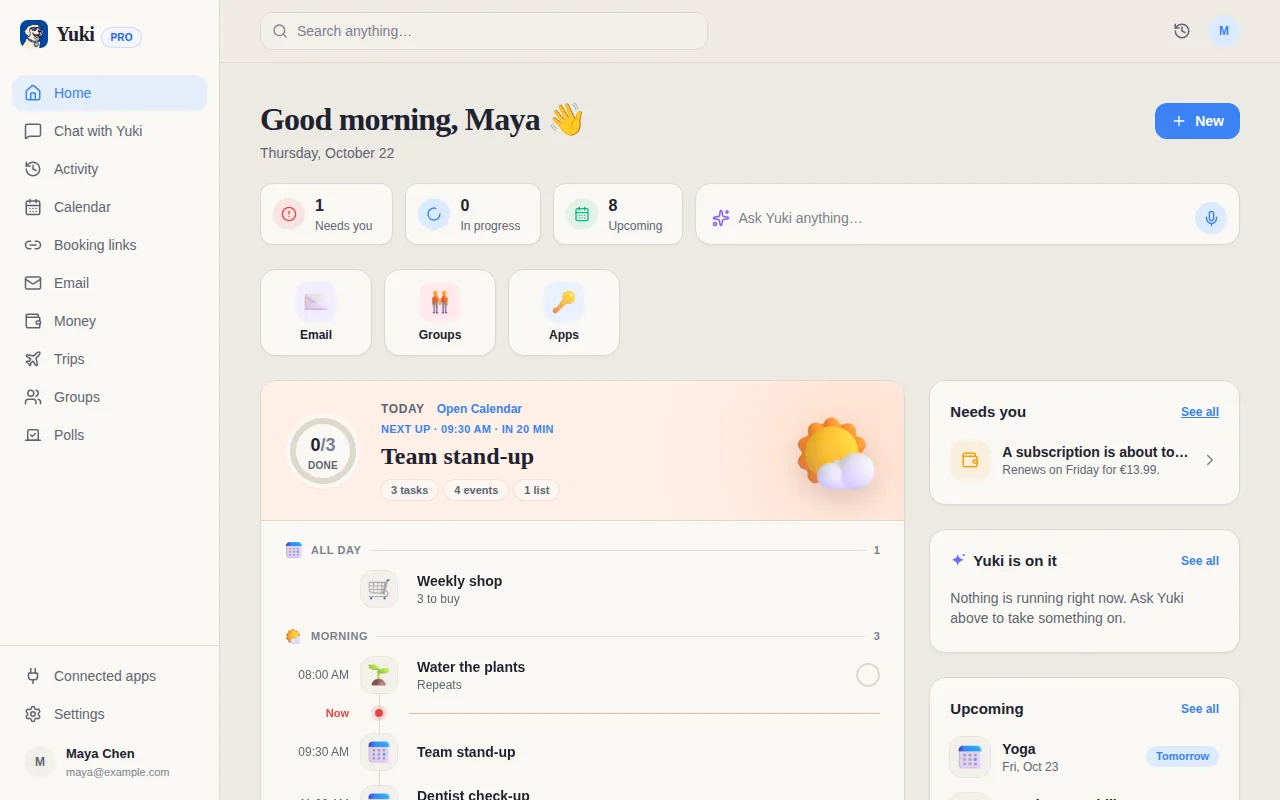
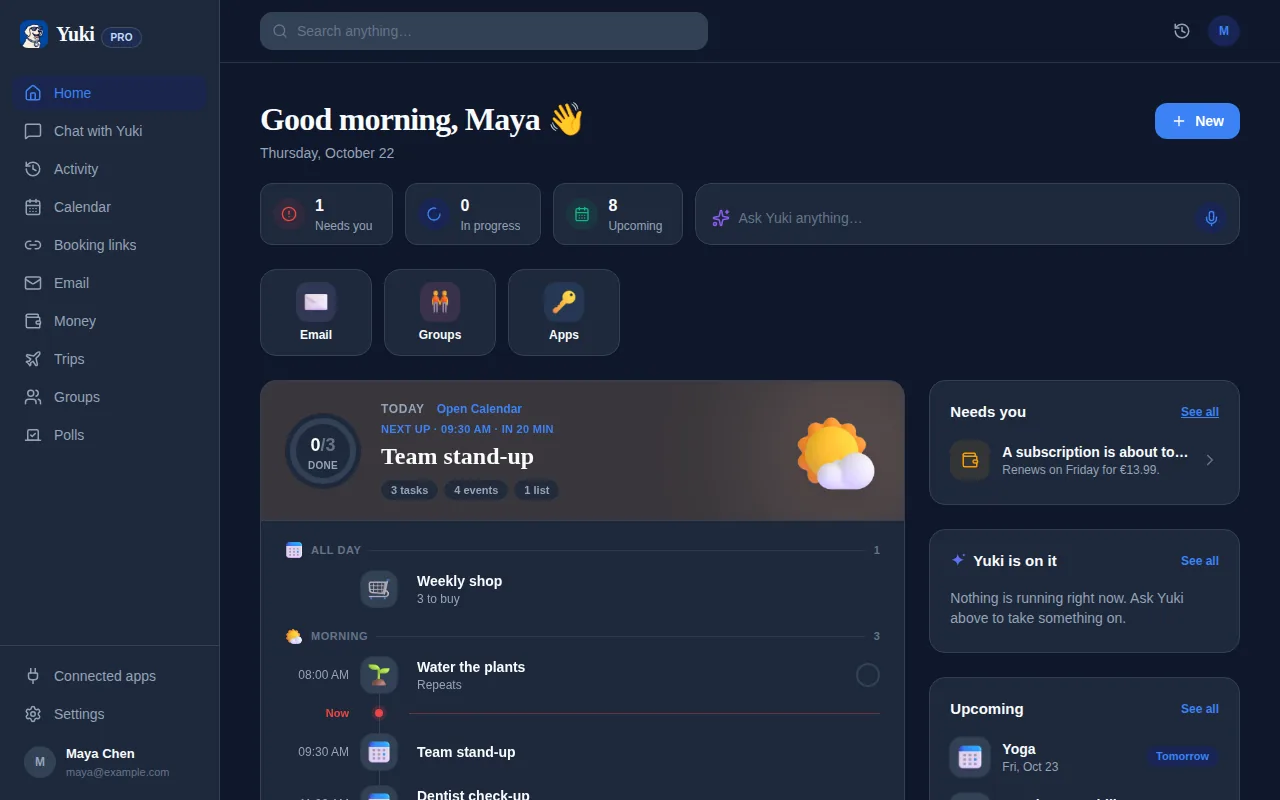
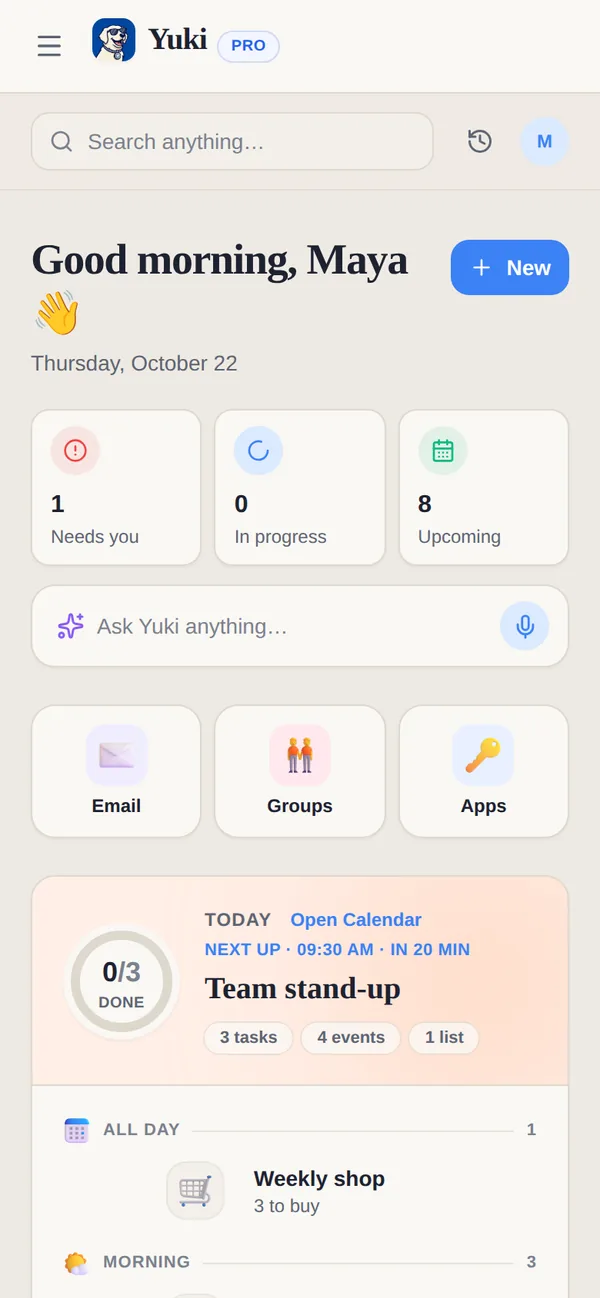
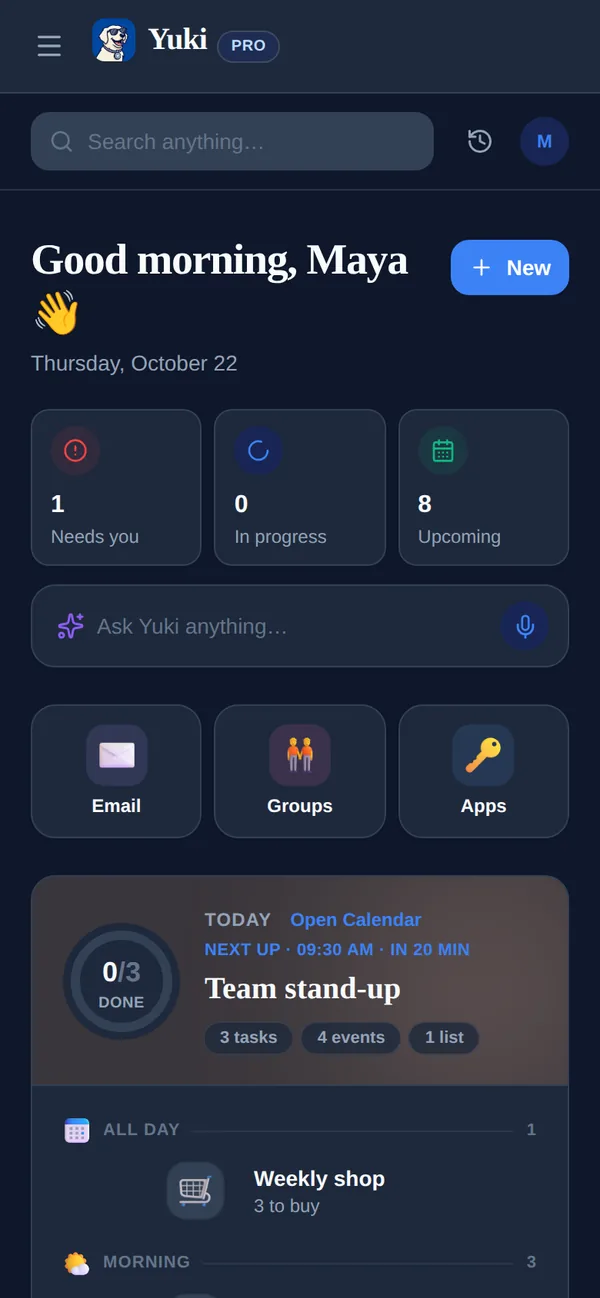
This is the part that replaces the mental load of remembering. Instead of holding 'renew the insurance,' 'the package arrives Thursday,' and 'we fly out at 6am' in your head, they're captured and surfaced when they matter. Give the first scan a minute or two, then open the Home tab — everything it found is already laid out for you to skim.
- Calendar events pulled from invites and confirmations
- Expenses and subscriptions extracted from receipts and bills
- Trip itineraries built automatically from flights, hotels, and bookings
- Package tracking for anything currently in transit
Connect your calendar so nothing lives in two places
Yuki writes two-way to Google Calendar, and on iOS it can write to Apple Calendar as well. Turning this on means the events Yuki finds show up next to the ones you already schedule manually — no separate silo to check, and changes flow both directions.
This is a small step that pays off every day. Once your existing calendar and Yuki's extracted events share one view, you stop cross-referencing an app against your 'real' calendar. It all becomes the real calendar.
Set up sharing if you coordinate with anyone
A lot of everyday load isn't solo — it's coordinating with a partner, family, co-parent, or roommates. Yuki's shared groups let you put the pieces that involve other people in one place: a shared calendar, shared expenses with bill-splitting and settle-up, grocery lists, and reminders like birthdays.
If you split rent, share a kid's schedule, or just want your partner to see the same trip itinerary you do, create a group and invite them during setup. You choose what's shared, so personal items stay personal. This is often where Yuki goes from useful to indispensable, because it removes the back-and-forth of 'did you pay the electric bill' and 'when does soccer start.'
- Couples and roommates: split bills and settle up without a spreadsheet
- Families and co-parents: one shared calendar and grocery list everyone can see
- Pick per-group what's shared — the rest stays private to you
Try Yuki AI and let the daily rhythm take over
Yuki AI is a natural-language assistant sitting on top of everything it has organized. Ask it plain questions — 'what's on tomorrow,' 'how much am I spending on subscriptions,' 'when does my package arrive' — and it answers from your own data. It's the fastest way to feel what Yuki is: a memory-and-coordination layer for your life, not another list to maintain.
After the first five minutes, you mostly stop 'using' Yuki in the active sense. New confirmations get organized as they arrive, deliveries update on their own, bills surface before they're due, and briefings keep you ahead of the day. The upfront setup is small precisely because the ongoing work is the point where the app disappears into the background and just keeps you organized.
Step by step
- 1Download Yuki free from the App Store (iOS) or Google Play (Android) and open it.
- 2Connect your inbox — Gmail — and grant read access so Yuki can find your confirmations, receipts, bills, and invites.
- 3Let the first sync run. Yuki scans recent mail and extracts events, expenses, subscriptions, trips, and package tracking; this usually takes a minute or two.
- 4Open the Home tab to review what it found — your upcoming calendar, tracked spending, and any active deliveries appear automatically.
- 5Turn on two-way Google Calendar sync (and Apple Calendar on iOS) so Yuki's events show up alongside everything you already schedule.
- 6Create a shared group for a partner, family, or roommates if you coordinate with anyone — invite them and pick what to share.
- 7Ask Yuki AI a question in plain language, like 'what's on this week?' or 'how much did I spend on subscriptions?', to see the assistant in action.